How to connect Ringostat to your NetHunt workspace
-
Go to your Settings > Integration > Integrate with Ringostat > Manage:

-
With the next step you need to set up enter your Ringostat Auth-key and Project ID. To find them, go to your Ringostat project and navigate to Integrations -> Ready-to-use integrations -> NetHunt.


3. Insert the “Webhook URL” below into the “URL” field and proceed with the integration process in Ringostat:


4. Save and activate the integration in Ringostat and make a call to your Ringostat phone number. When completed, hit “Test” below:

5. After successfully completing the tests, click on “Connect” at the top of the page:

6. The next step is to match the users in NetHunt and Ringostat by specifying the employee ID and employee SIP. You can also find these data in your Ringostat personal account:

How to work with Ringostat in NetHunt CRM
To make calls, you can install the Ringostat Smart Phone extension or another program for making calls on the Internet (for example, Zoiper):

Call history
In your "Ringostat calls" section you can view all the information on the calls that have been made:
-
which of the employees accepted or made the call and to which number,
-
duration and date of the call,
-
call status — answered or not answered.

Your calls can also be sorted by a few metrics such as call duration, creation date, and last update date.

Creating a contact out of your call
If someone is calling you for the first time (the person is not in your CRM yet), the system will show this and provide an opportunity to create a new customer record:

In order to create a new contact, click on the NetHunt icon on the right and enter the information needed:

You can use the suggestion, or create a new record in one of your folders. After that, all calls with this contact will be available in his card on the timeline.
Listen to the call recording
You can also listen to the call recording both from the card and from the call history:

Calls via FMC numbers
Users of the Ringostat integration can make outbound calls directly from NetHunt CRM using their linked FMC numbers.
How to set up user mapping
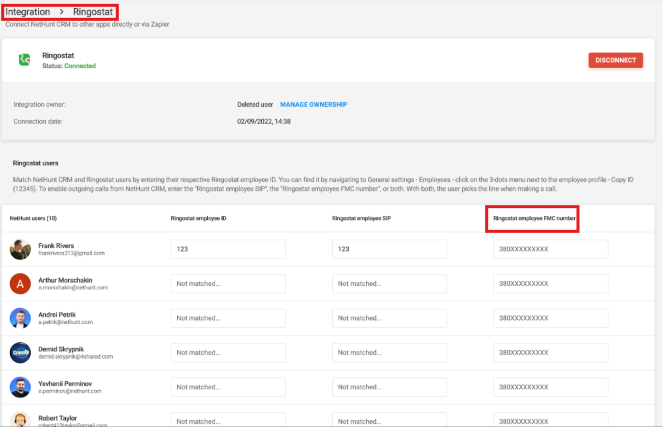
The user mapping table includes a column for entering each employee’s FMC number:
- Go to Settings > Integrations > Ringostat.
- Find the table for mapping NetHunt CRM users to Ringostat accounts.
- In the ‘FMC number’ column, enter the relevant mobile number for each manager.
- Save your changes.
Making calls from CRM
The logic of the action menu depends on which types of numbers are assigned to the user:
- Both numbers are connected (SIP and FMC): when clicking on a client’s phone number or via the action menu, the manager can choose the most convenient way to make the call – via the SIP line or using FMC:
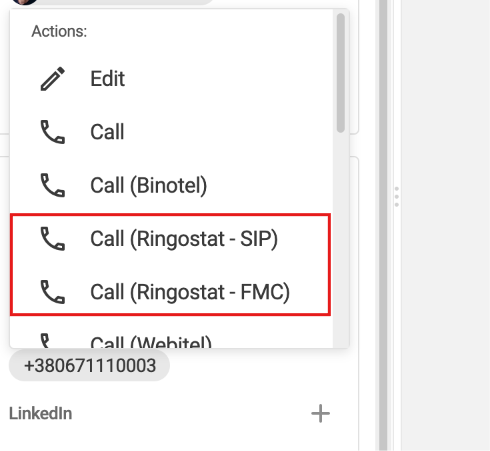
- Only one number is connected (SIP only or FMC only): the actions menu displays the standard universal option ‘Call (Ringostat)’.

Haven’t found the answers you’re looking for? Ask our Users Community.
