NetHunt CRM offers a special Formula field that allows you to perform calculations using selected fields and return values based on specific conditions. Let's explore how this field works through practical examples.
What can you do with the Formula field?
- Add, subtract, divide, and multiply field values.
- Calculate commissions.
- Calculate discounts.
- Calculate the number of days between dates.
- Generate text values.
- Generate URL links.
- Apply conditional number formatting.
- Process values from other Formula fields.
- Calculate Related Summaries.
In order for a formula-type field to perform some calculations, we first need to add several fields of number, percentage, or currency type. Go to Settings -> Folder and field management -> Choose a folder -> Fields:


Let's take a closer look at the Formula field's functionality:
-
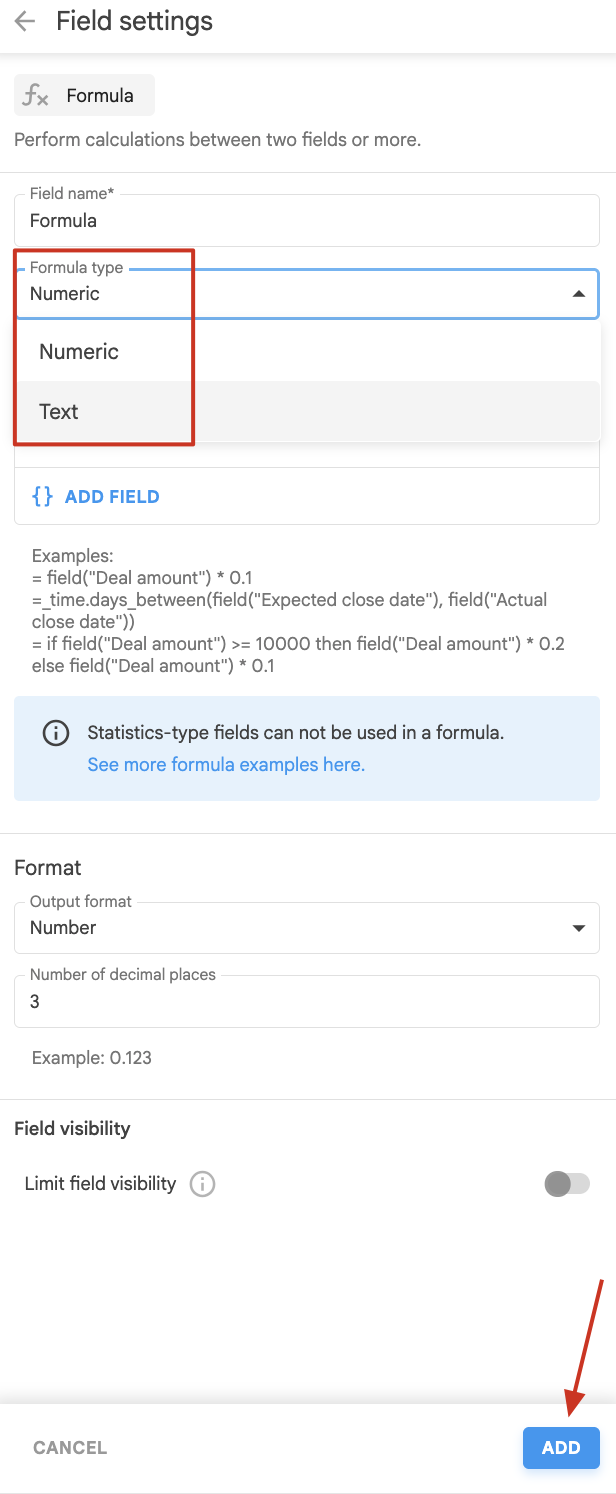
Formula Type – You can choose either a numeric or a text formula type.
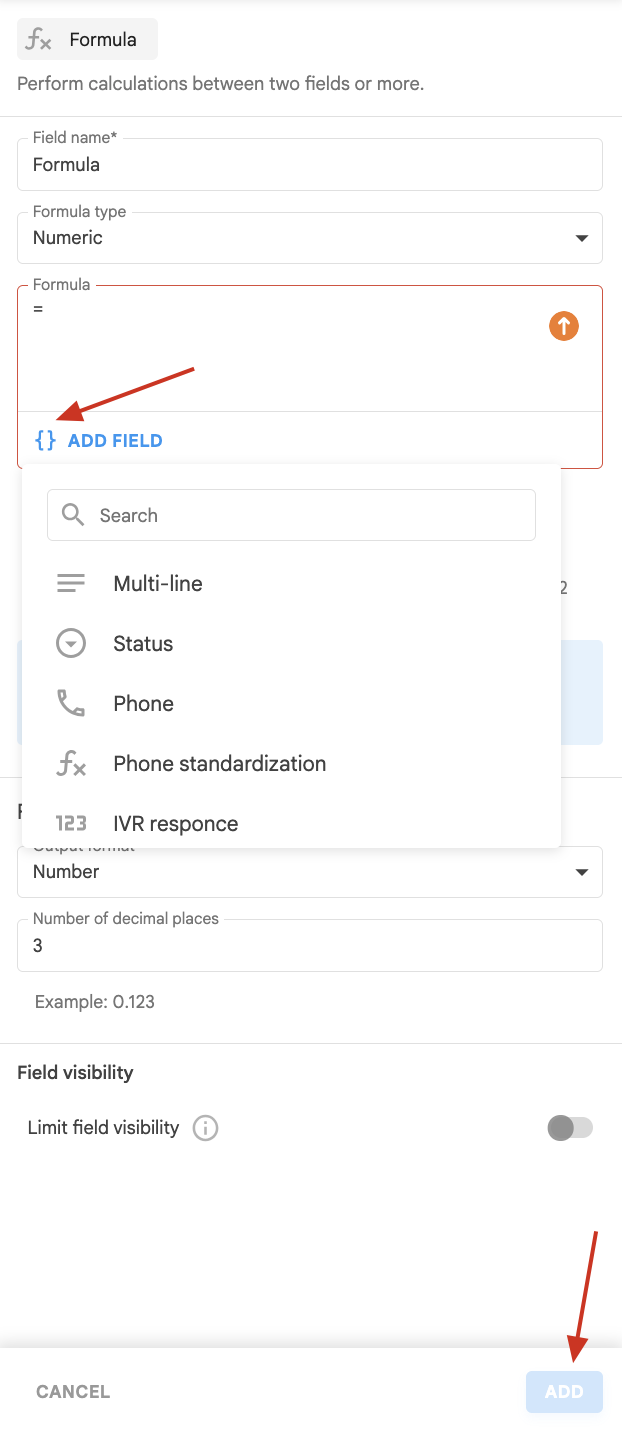
- Formula and Macros – You can select the fields you want to use or enter the formula manually.
⚠️ Formula-type fields require exact field names used for calculations. Otherwise, you will receive an error message
❗️ Important! The Formula field does not work with Statistics fields or system fields.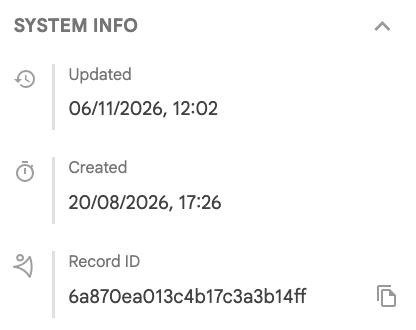
Operations with sums, differences, division, and multiplication
First, let's sum the fields 'First payment' + 'Second payment' to get the total amount (you can add more than two number fields for these simple calculations). Type in the calculation that will be performed in the formula field. Here is an example of a needed formula:
= field("First payment") + field("Second payment")

Now the formula field will calculate the total amount we received from this company:

We can also calculate the Client's debt by creating another field 'Service cost' that will participate in the calculations. Example formula:
= field("Service cost") - field("Total paid")

To multiply the fields together, use the sign *. For instance, let's calculate the cost of an annual subscription for specific services. To do this, we will create separate fields 'Monthly cost' and a formula 'Annual cost':
= field("Monthly cost") * 12

To perform division operations, use the sign /. In this example, we will calculate the monthly payment from the total cost with the following formula:
= field("Annual cost") / 12

Discount calculation
Imagine you need to calculate the cost of a service with a discount, and recently you have sent a promo that states everyone who orders 10 or more items of your product receives a 20% discount on a bill. The fields 'Quantity' and 'Cost per item' in numbers will give us the full cost calculation, and the formula field 'Total price (with 20% discount)' will show the discounted cost:
= field("Quantity") * field("Cost per item")
= (field("Quantity") * field("Cost per item")) * 0.8

Commission calculation
Imagine you are a real estate agent, and you have a deal and all the related information. When you fill out all the information you have in respective fields, the 'Commission $' field will automatically calculate your commission for a closed deal:

Add fields a currency field 'Total price' and 'Commission' in percents, later add a field 'Formula' with the following structure:
= field("Total price") * field("Commission")

Amount of time between two given dates
In addition to operations with numeric fields, the formula field can also subtract the date from the date to calculate the difference in days, months, and years (it might come in handy when you need to see how many days ago the last interaction with a record was, or how many days passed from its creation to its successful implementation):
=_time.days_between(field("Date of creation"), field("Date of implementation"))
=_time.months_between(field("Date of creation"), field("Date of implementation"))

Generating a clickable URL
For URLs that are composed of the domain and the ID, you can create a clickable URL field in NetHunt. To do so, set up separate fields for the website and the ID and a text statistical field to combine the two:

When you put in the values for your two text fields (Amazon and Ricoh Imaging in our example) your formula = field("Web-site") .. "" .. field("ID") will generate a clickable URL:

You can click on it and open it in the new or current tab, and this feature can work for multiple websites and IDs:

Text value generation
A formula field can also add text values by checking the required fields: if a field is always equal to the specific value, then a formula will show the required result. In our case, the field with the name of the city Rome is used and the formula is 'Region':

You can also make this formula more complex with If, Or, Then, and Else helpers for several values to be equal to 'Europe' and others to a new parameter 'North America':
= if field("City") == "Rome" or field("City") == "Milan" or field("City") == "Palermo" then "Europe" else if field("City") == "Washington" then "North America" else""

Conditional formatting of numbers
Let's stick to the same conditionals If, Then, Or, and Else.
-
Example 1. If you need to calculate the percentage of a discount on the condition that more than 100 units are ordered:
= if field("Number of articles") > 100 then 0.1 else 0

⚠️The output format of a formula should be 'Percent'
Next, we can calculate the final cost based on the price and the discount:
= field("Price") - (field("Price")*field("Discount"))

-
Example 2. If you have a field that is responsible for currency type (e.g the US dollar (USD) as a drop-down menu with multiple presets) and you need to immediately convert the deal amount into Ukrainian hryvnia (UAH) at the exchange rate, we can use the following formula:
= if field("Currency") == "USD" then field("Deal amount") * field("Exchange rate") else field("Deal amount")

You can use Chat GPT to simplify working with the formula field. Start creating a request mentioning that this is a formula for NetHunt CRM, and specify all the names of required fields along with operations that should be performed. The chat will offer a few options that you can copy and add to the formula field in CRM
If you are a developer or an integrator and have additional questions, such as what language the code is written in and what other queries this field supports, you can find documentation at this link.
That's it! You've successfully set up the formulas to calculate your values automatically. That way you can save lots of time for yourself and other people.
Haven’t found the answers you’re looking for? Ask our Users Community.
