HelpCrunch is a customer support platform that brings customer inquiries from your website widget, email, Telegram, and other channels together in one place.
The HelpCrunch integration with NetHunt CRM allows you to respond to customer inquiries directly from your CRM workspace. You can also link conversations to contacts, companies, deals, and any other records.
How to Connect HelpCrunch to Your NetHunt Workspace
-
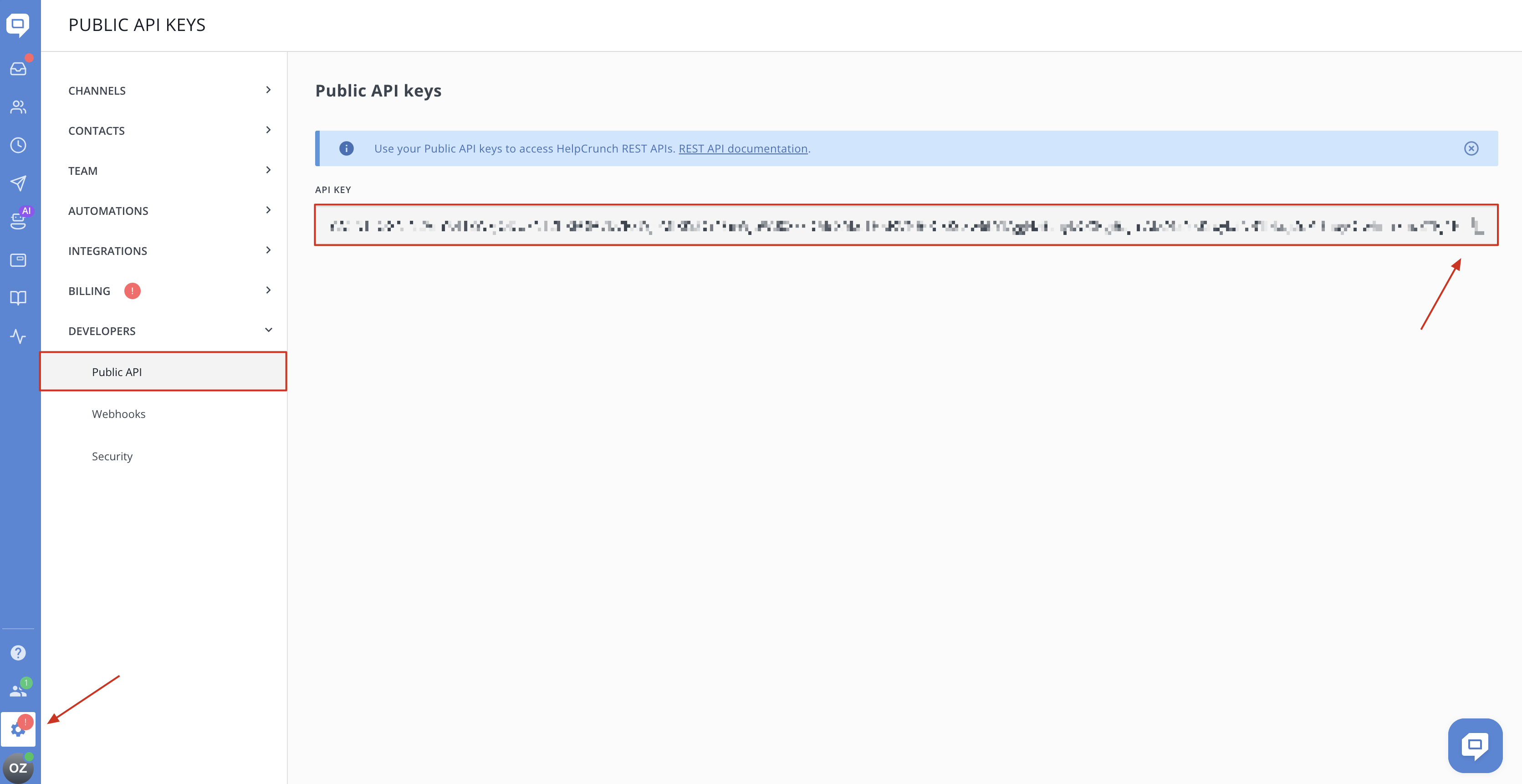
Copy your API key from HelpCrunch: Settings → Developers → Public API.
-
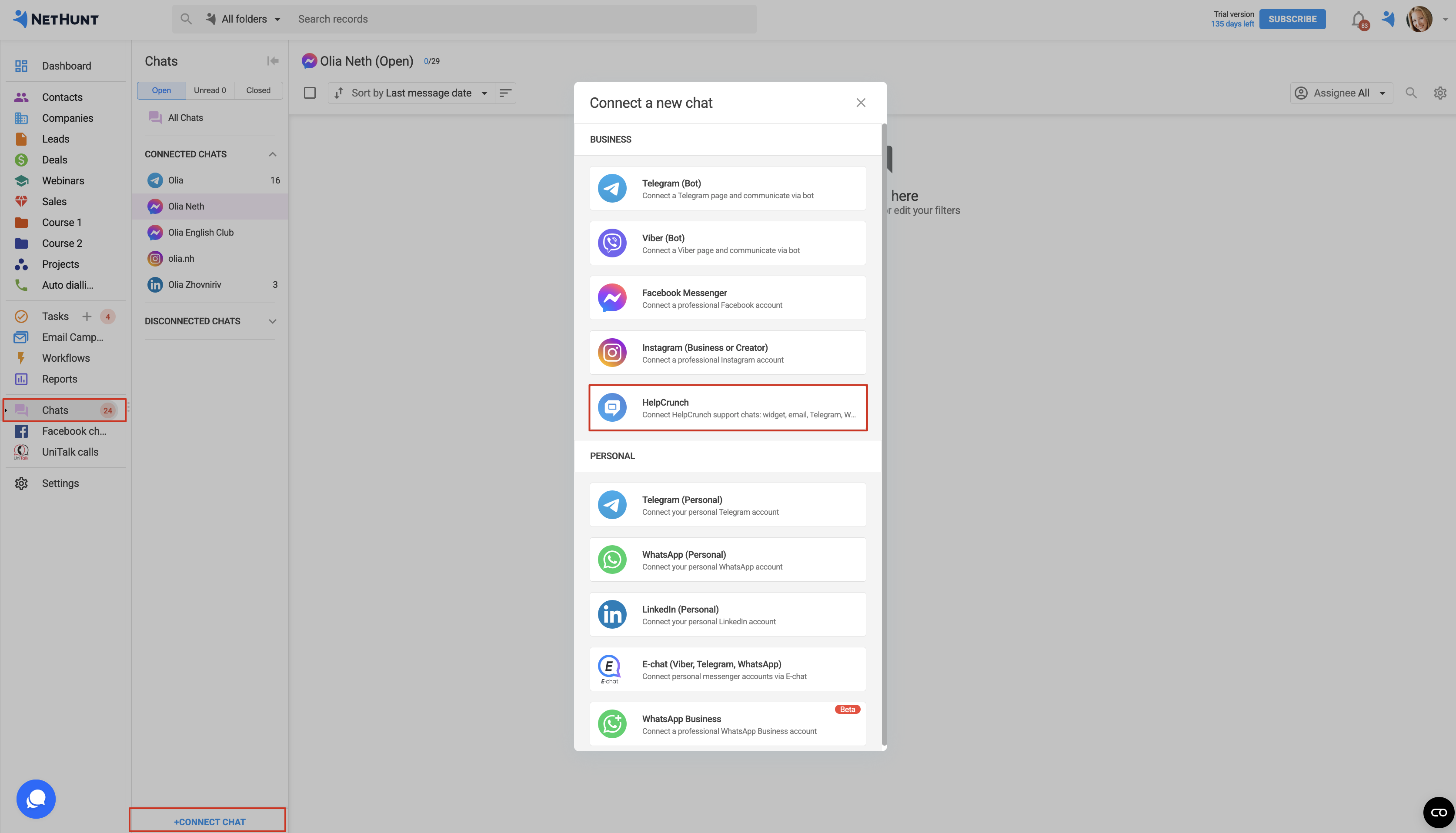
Return to NetHunt CRM, open the Chats section, and click + Connect Chat.
-
Under Business, select HelpCrunch.
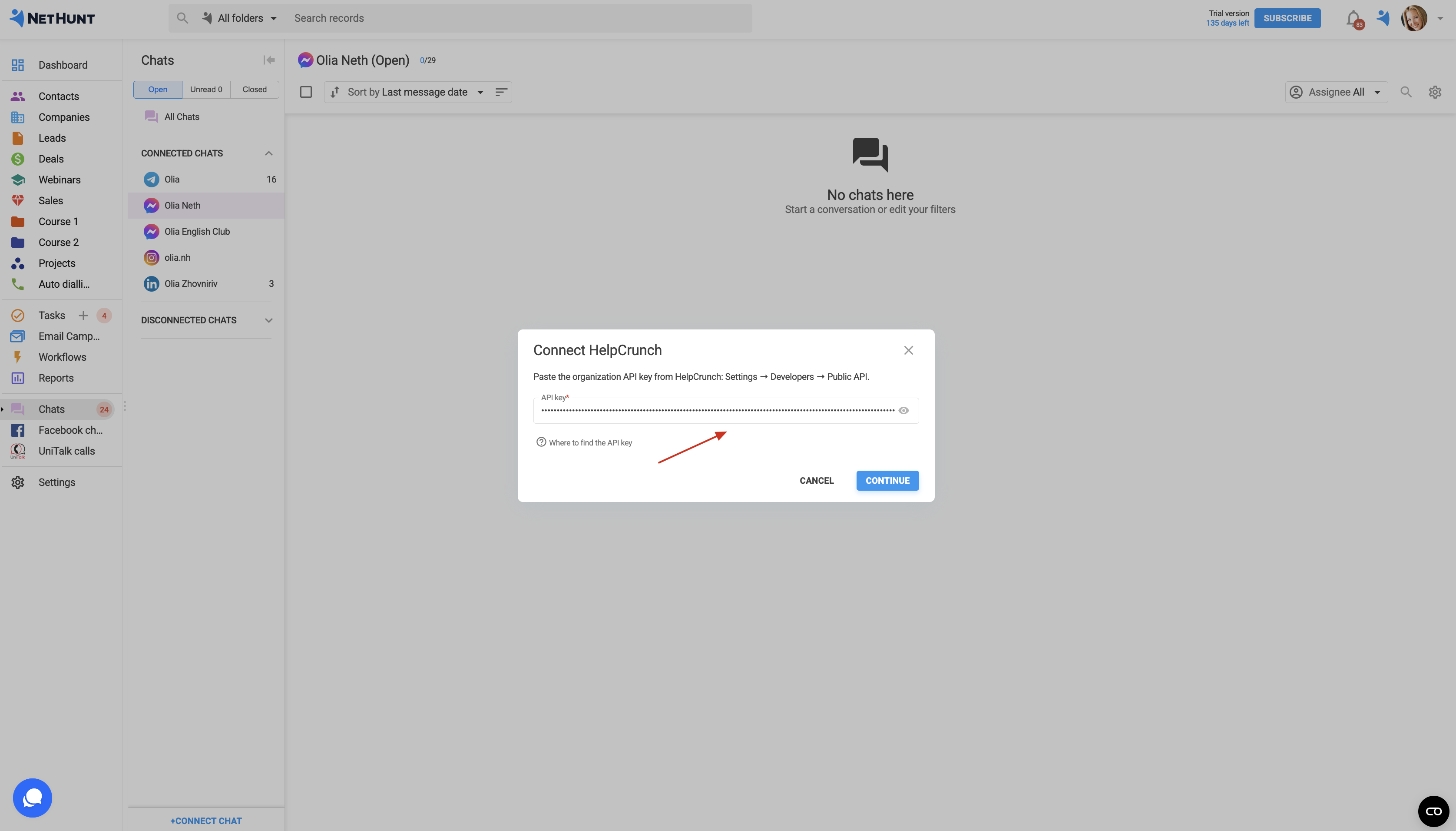
- Paste the copied API key into the field and click Continue.
Configuring HelpCrunch Webhooks
Once connected, a webhook URL will be generated.
Webhooks allow NetHunt CRM to receive new messages and conversation status updates from HelpCrunch.
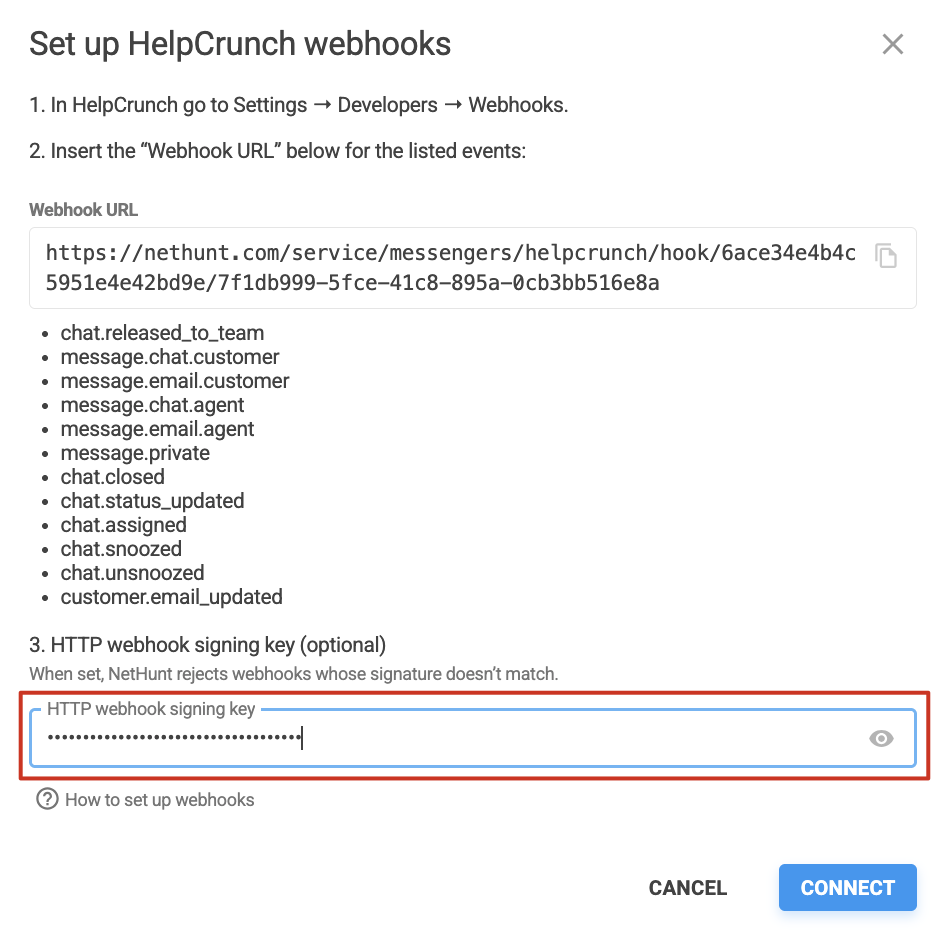
Copy the generated webhook URL:
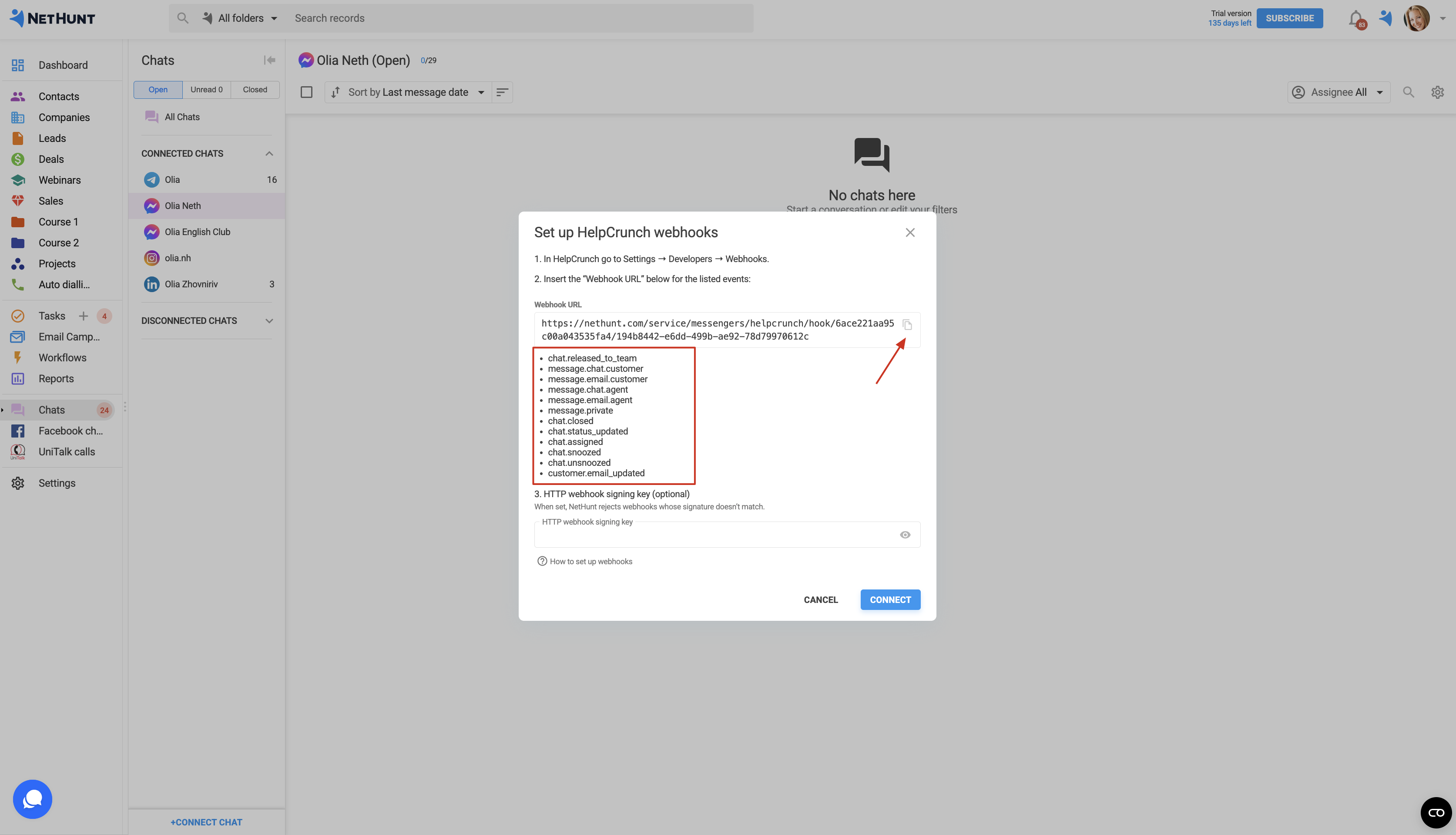 Open HelpCrunch and configure webhooks for the following 12 events by adding the copied webhook URL to each one:
-
chat.released_to_team
-
message.chat.customer
-
message.email.customer
-
message.chat.agent
-
message.email.agent
-
message.private
-
chat.closed
-
chat.status_updated
-
chat.assigned
-
chat.snoozed
-
chat.unsnoozed
-
customer.email_updated
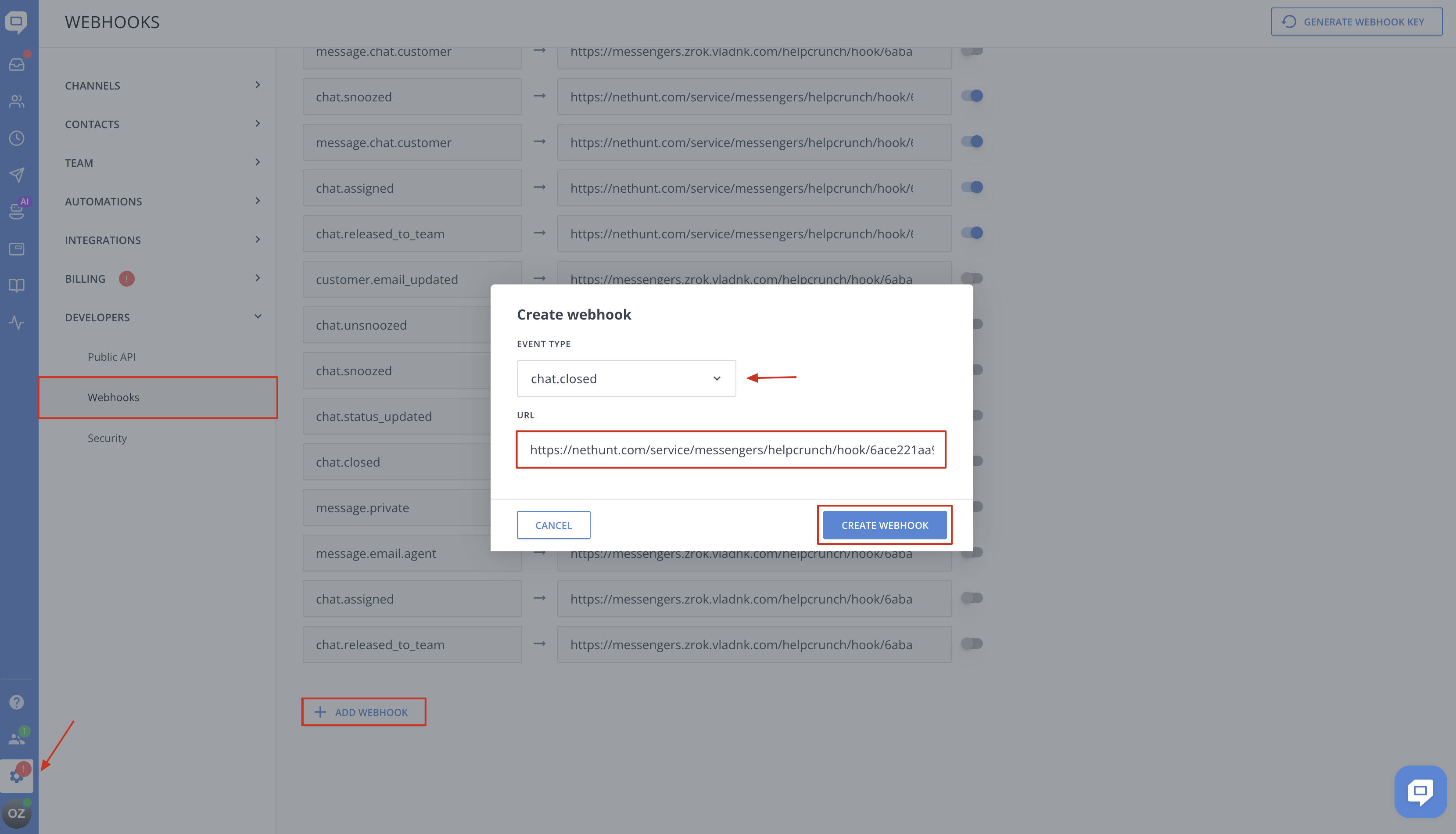
💡 Note: Make sure all webhooks are enabled.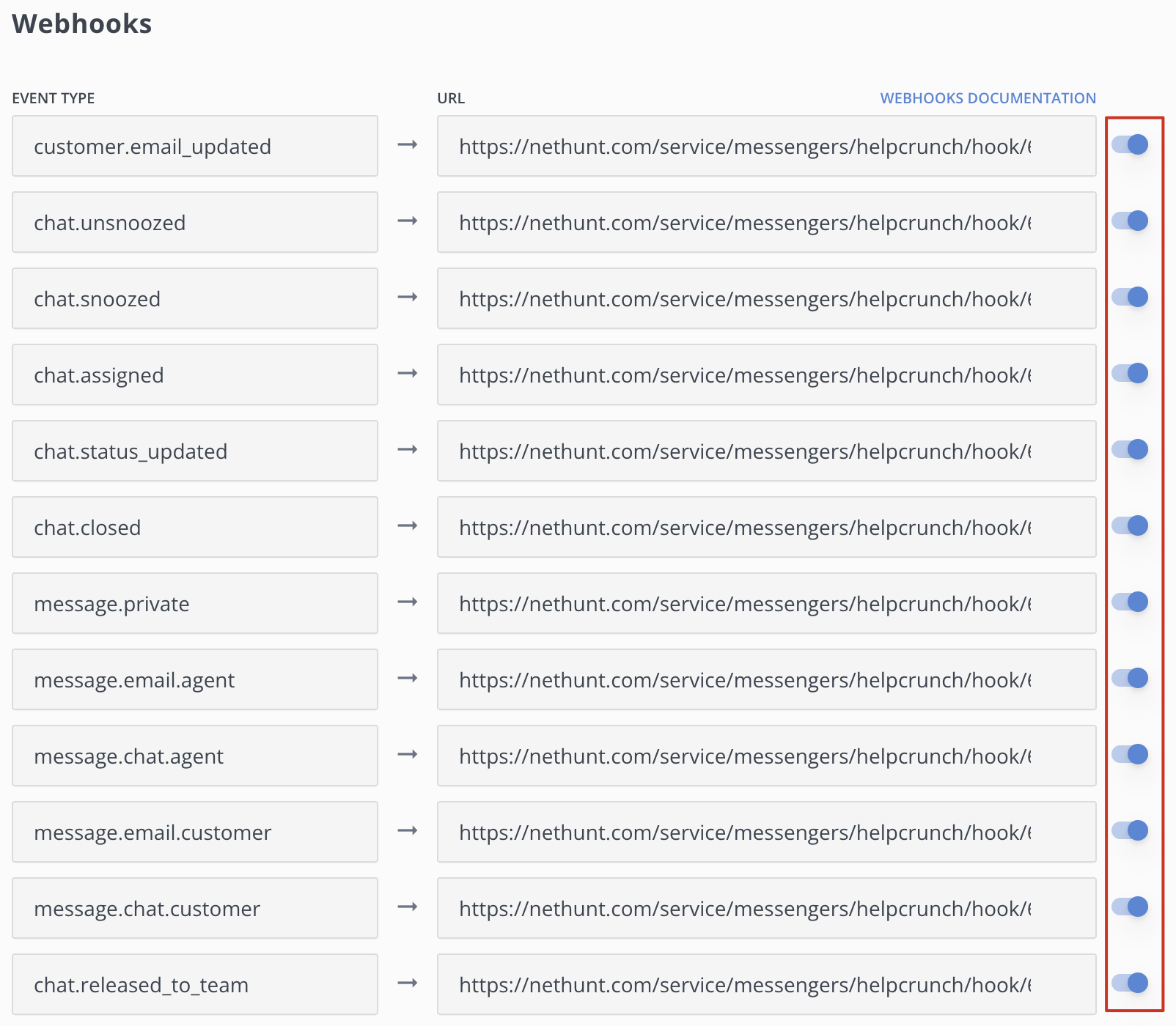
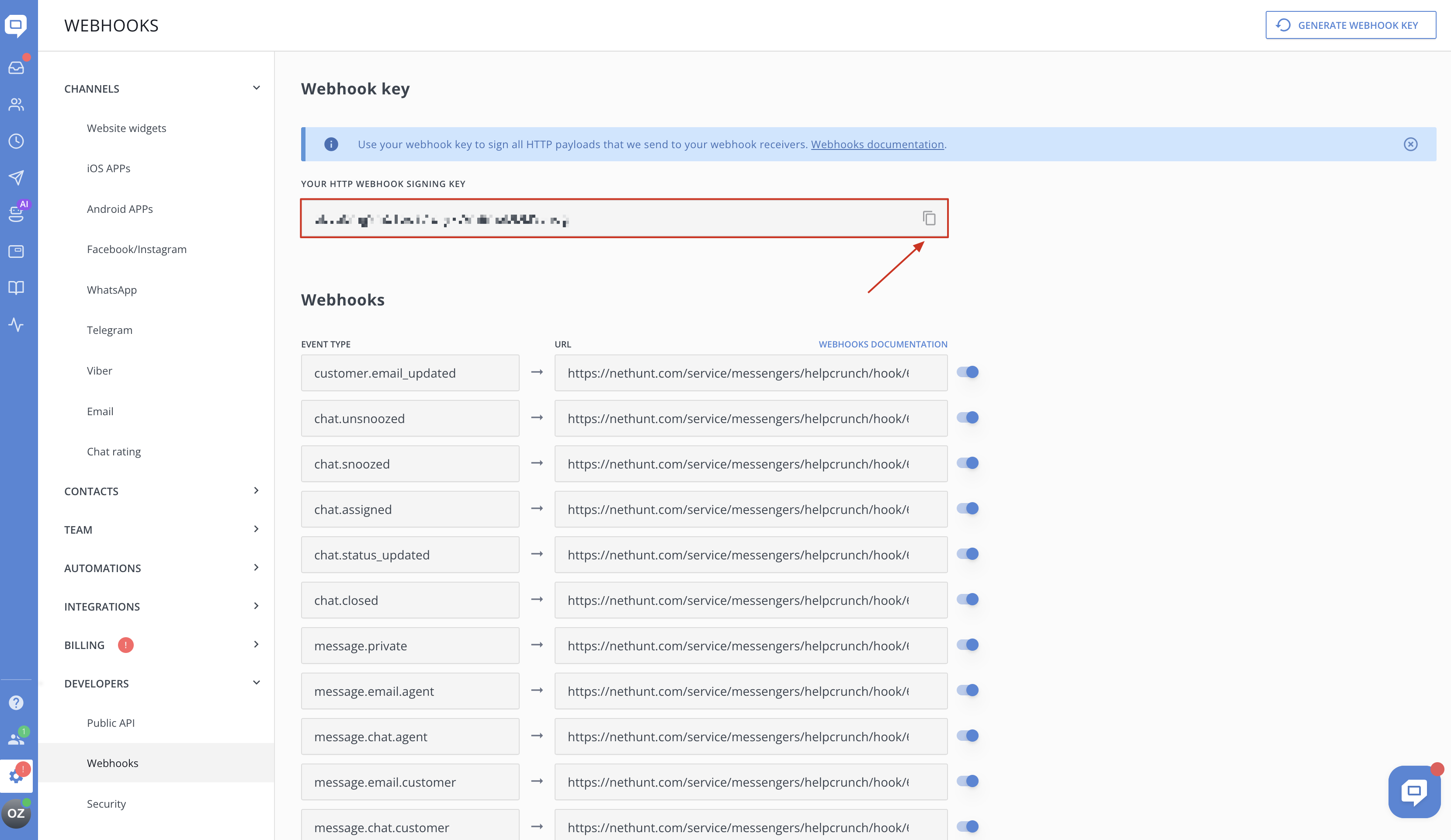
Also, copy the HTTP webhook signing key:
Then, add the key to NetHunt CRM:
Now, click Connect: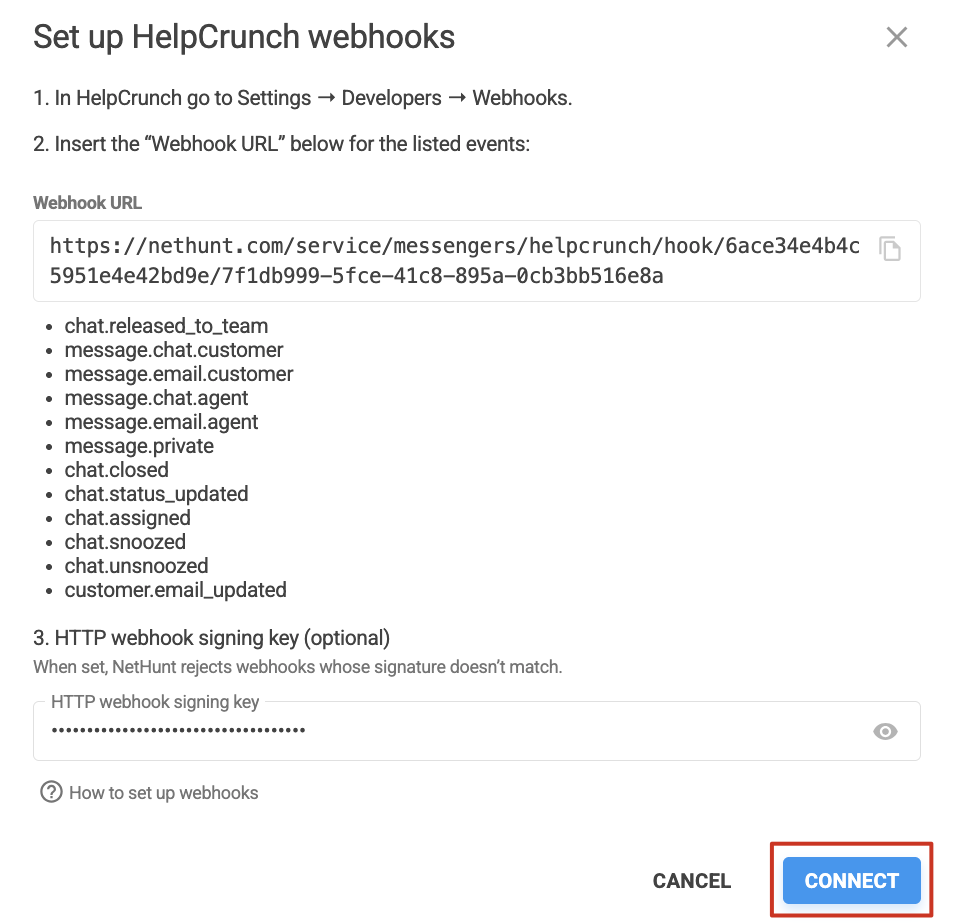 Congratulations! You’ve successfully connected HelpCrunch to NetHunt CRM!
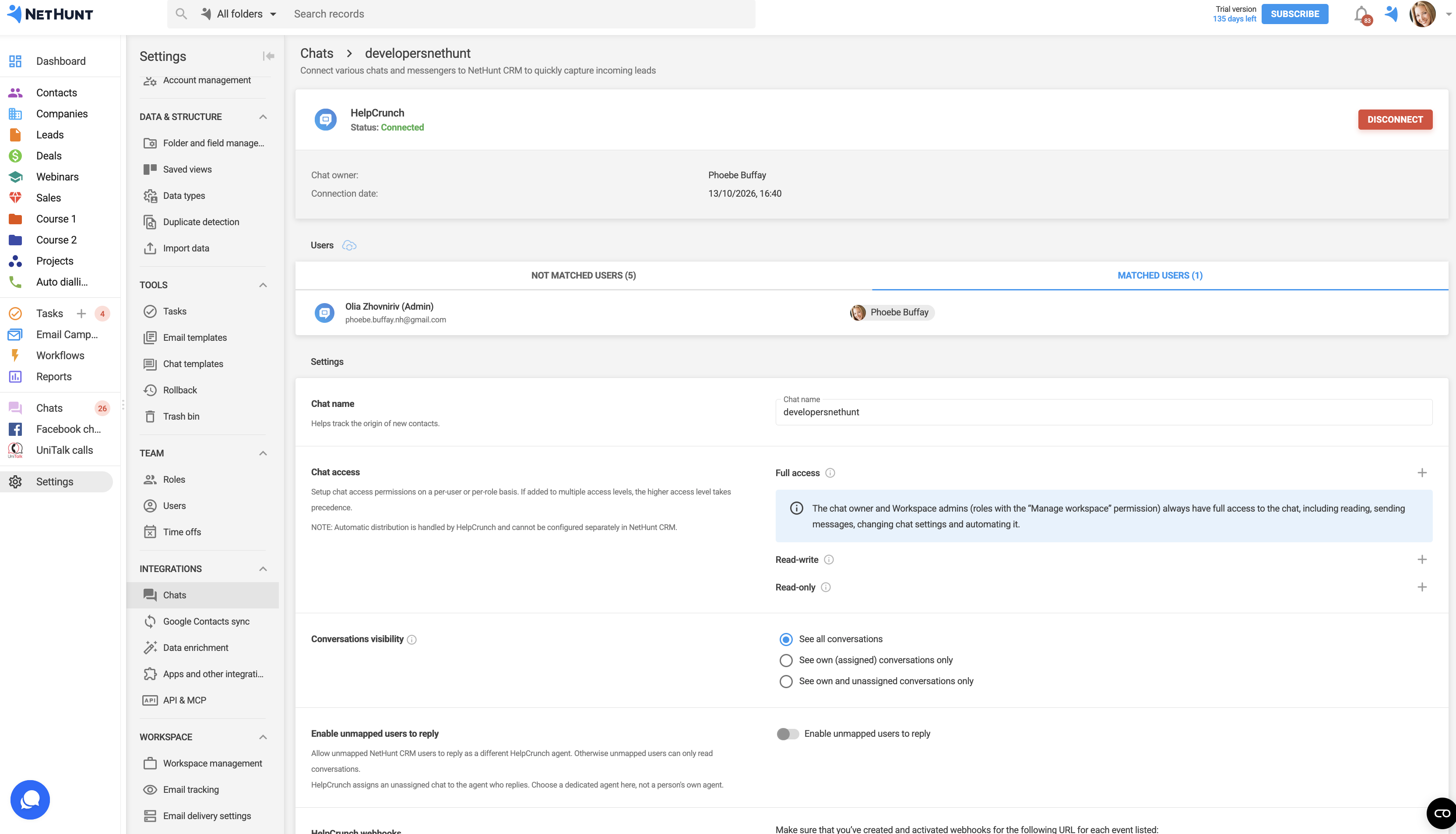
HelpCrunch Agents and NetHunt CRM Users
On the settings page, under Users, you’ll find two tabs: Matched Users and Not Matched Users.
NetHunt CRM matches HelpCrunch agents with users in your workspace:
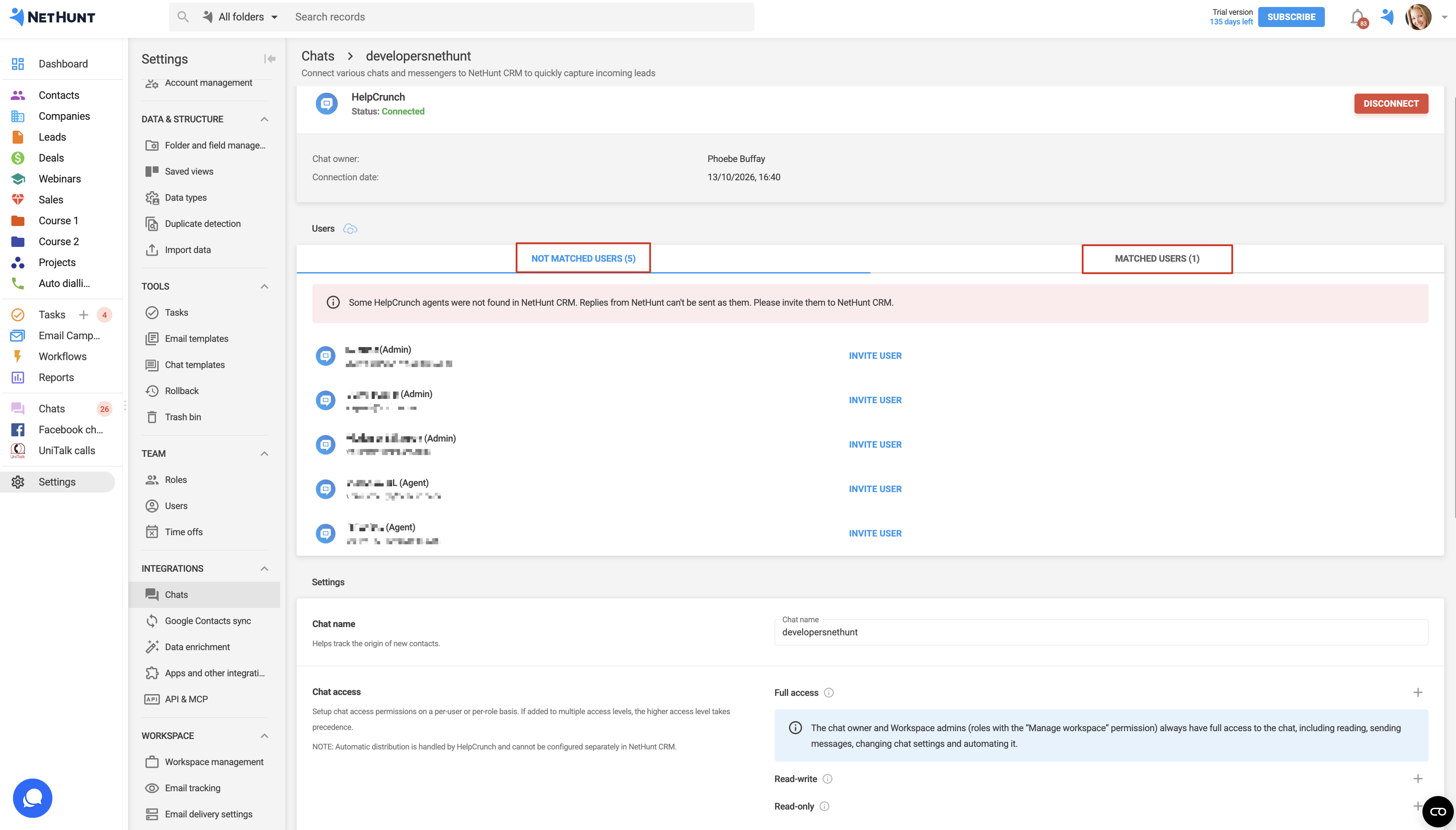
If a HelpCrunch agent cannot be found in NetHunt CRM, replies from the CRM cannot be sent on their behalf. To resolve this, click Invite User next to the relevant agent.
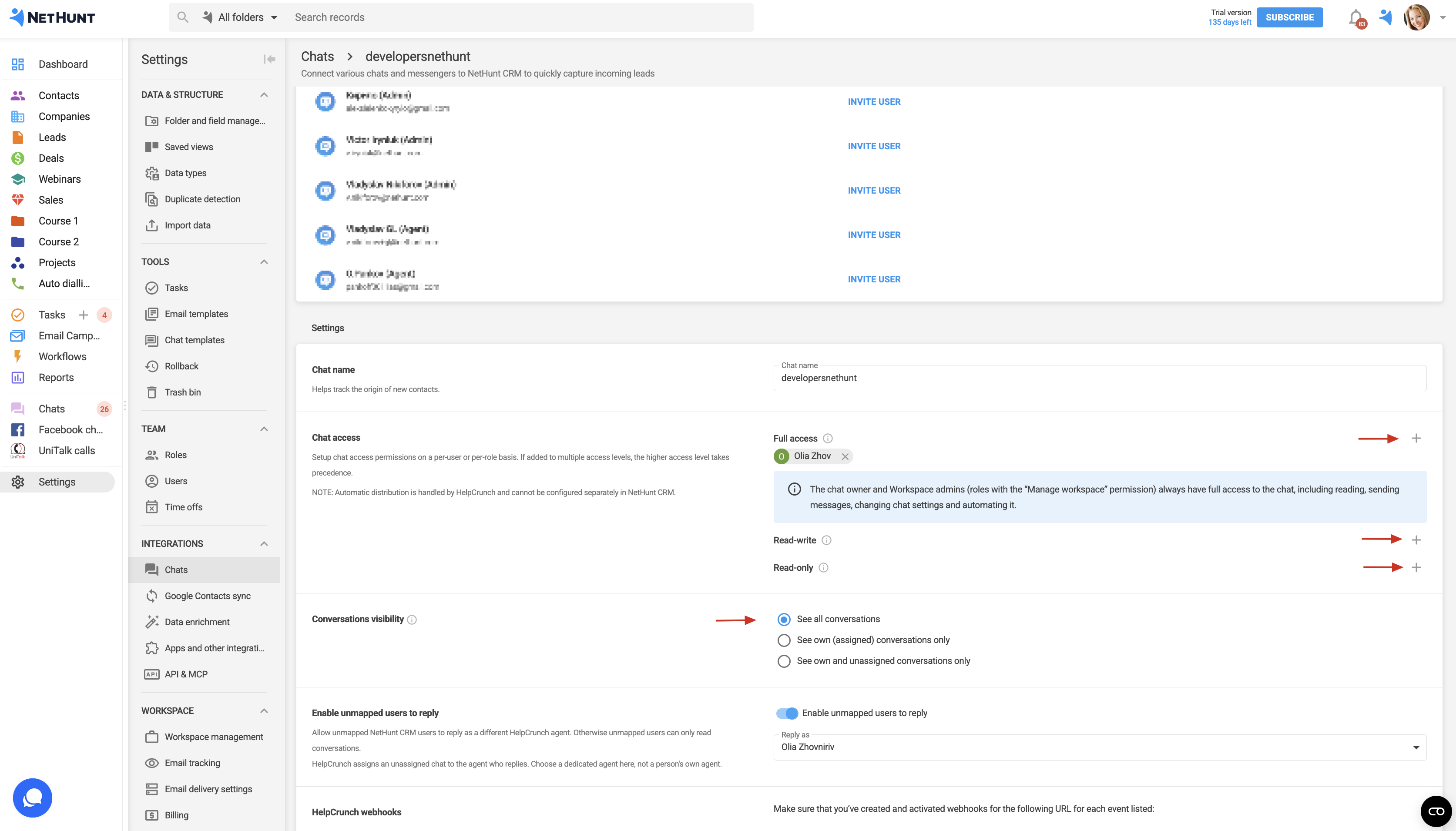
Turn on Enable unmapped users to reply if you want NetHunt CRM users who are not assigned to a HelpCrunch agent to be able to reply as well. Their messages will be sent on behalf of another agent. If this setting is disabled, these users can only read conversations.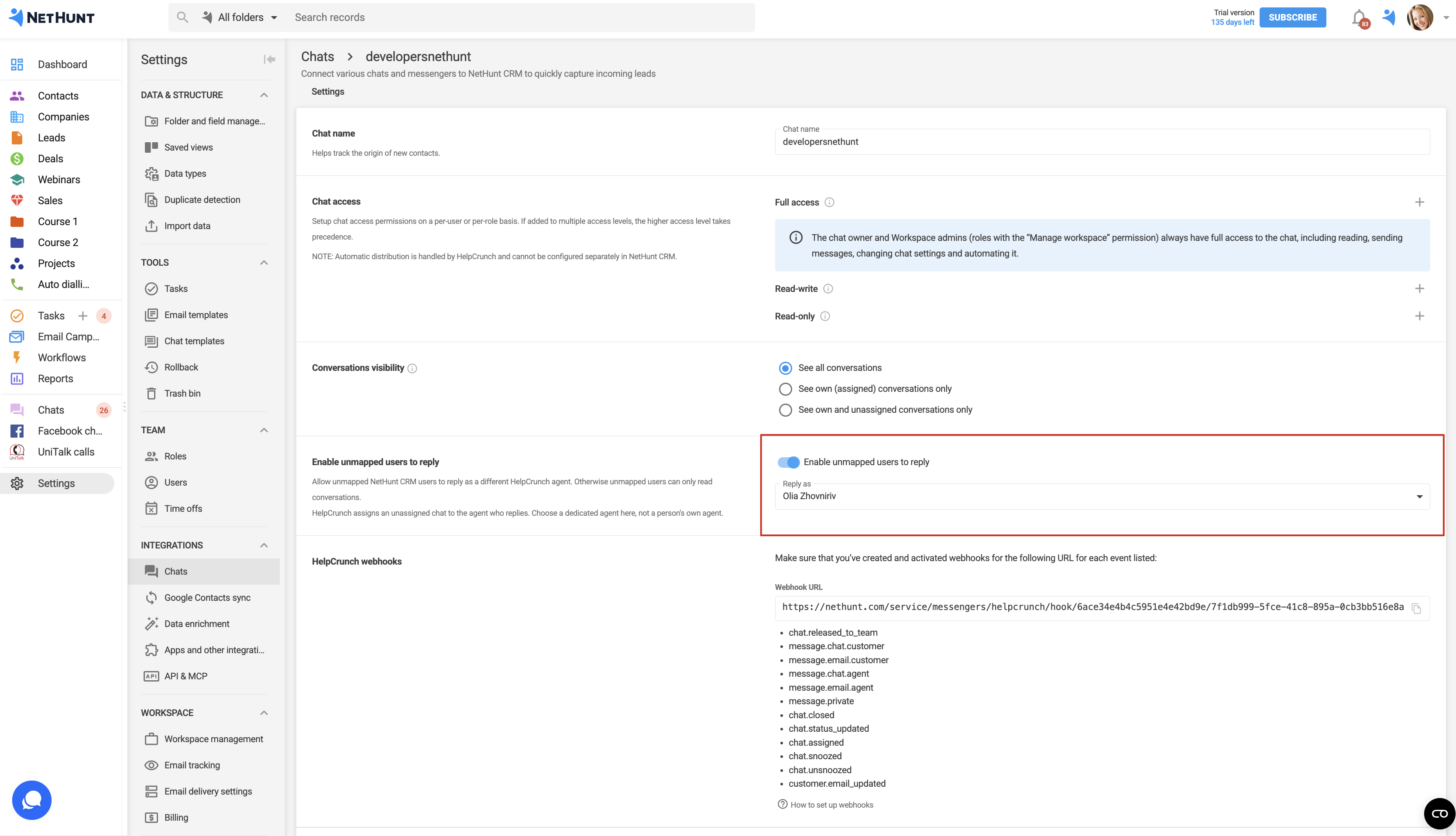
Chat Access
In the Chat Name field, you can change the channel name. This helps you track where new contacts come from.
Under Chat Access, configure permissions for each user or role:
-
Full Access: View conversations, send messages, and manage chat settings and automations.
-
Read-Write: View conversations and send messages.
-
Read Only: Read conversations without being able to send messages.
If a user has multiple access levels, the highest level of access applies.
💡 Note: The chat owner and workspace administrators (users with the Manage Workspace permission) always have full access to the chat.
Under Conversation Visibility, select which conversations users can access:
- See all conversations
- See own (assigned) conversations only
- See own and unassigned conversations only
Working with HelpCrunch Chats in NetHunt CRM
Once connected, all HelpCrunch conversations will appear in the Chats section:
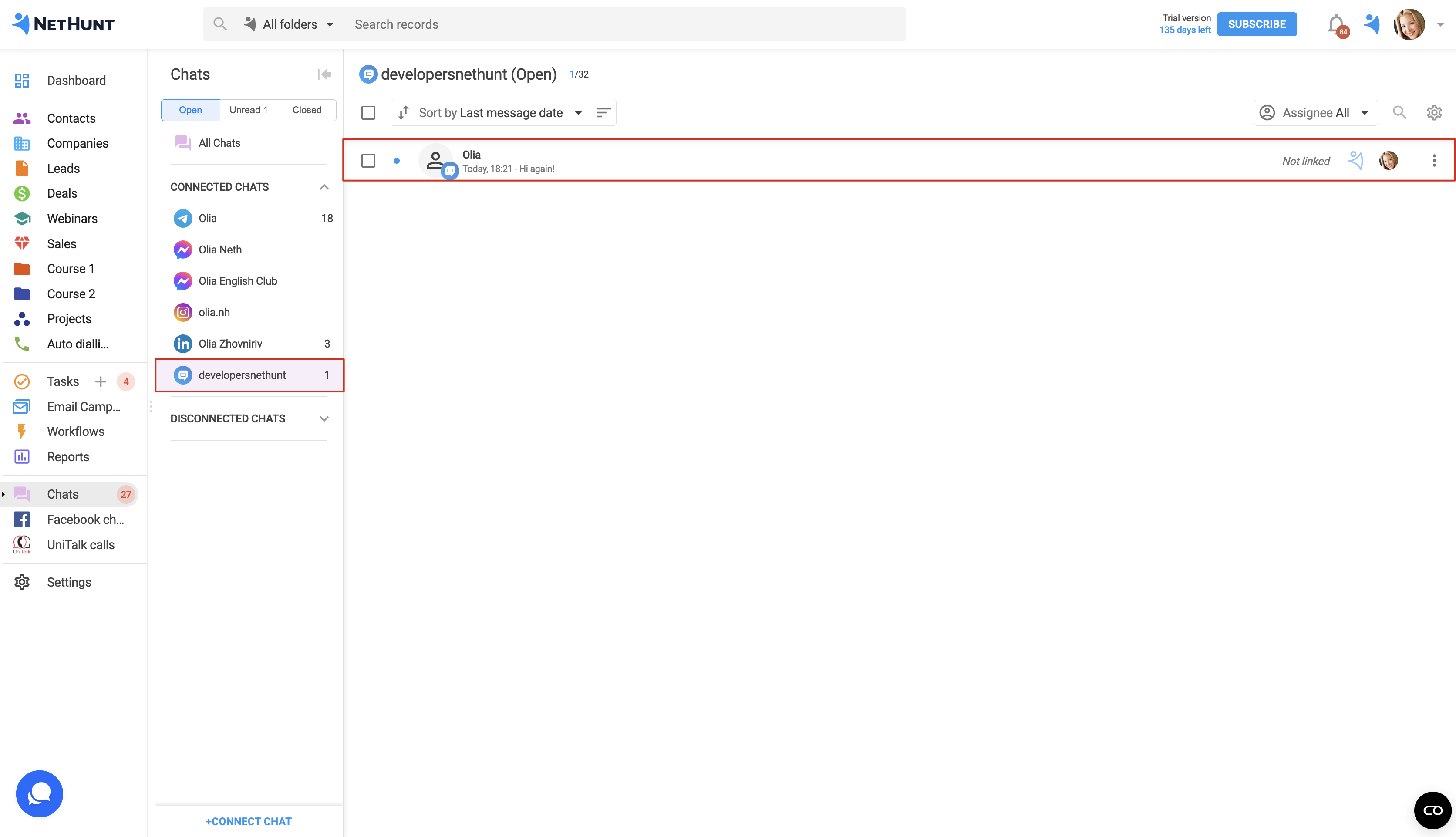
You can filter conversations by status (Open, Unread, Closed) and assignee, as well as sort them by the date of the last message.
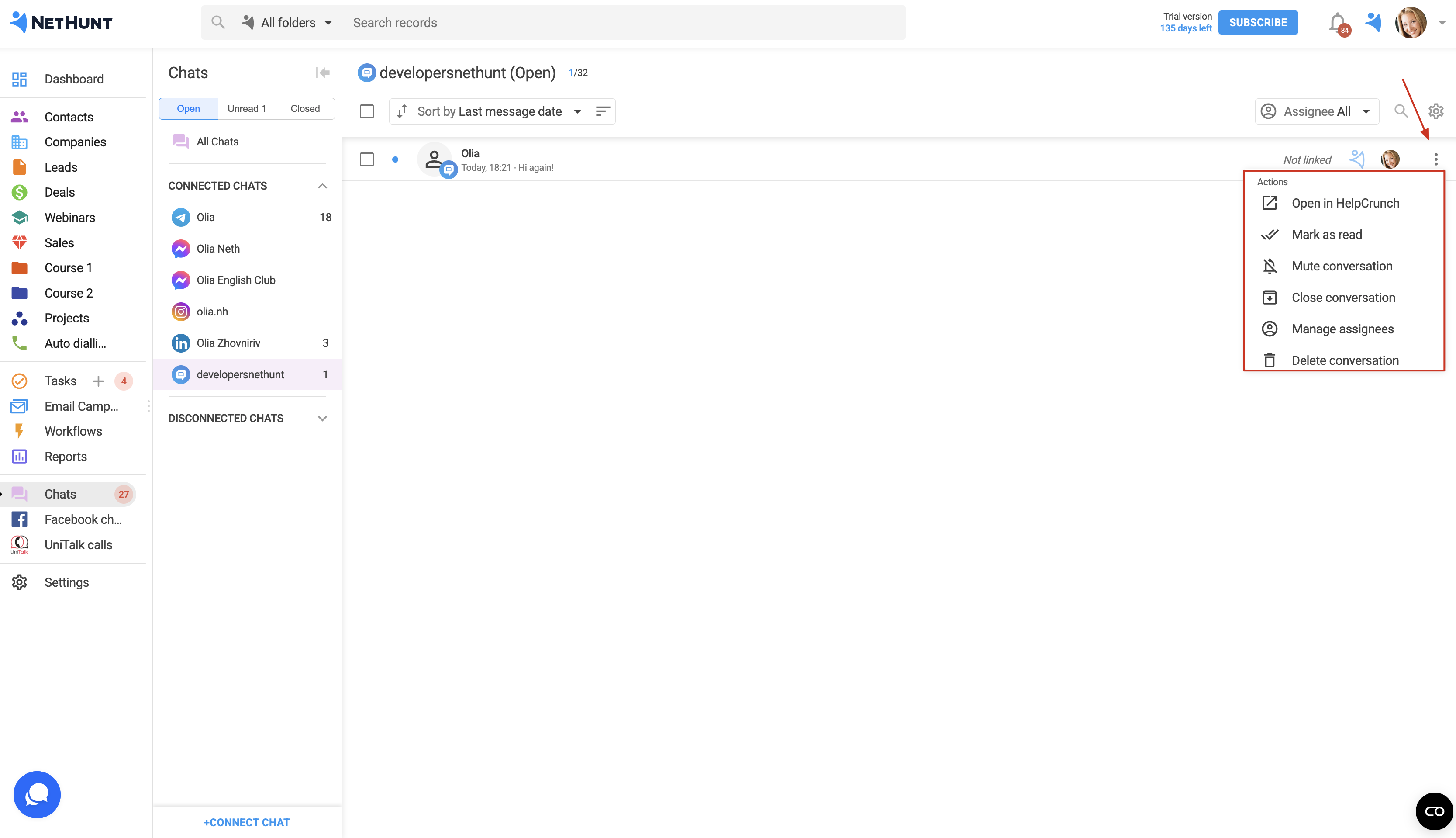
The following actions are available from the ⋮ menu next to each conversation:
-
Open in HelpCrunch
-
Mark as read
-
Mute conversation
-
Close conversation
-
Manage assignees
-
Delete conversation
💡 Note: NetHunt CRM only displays the conversation assignee from HelpCrunch. You cannot change the assignee in HelpCrunch through NetHunt CRM Chats.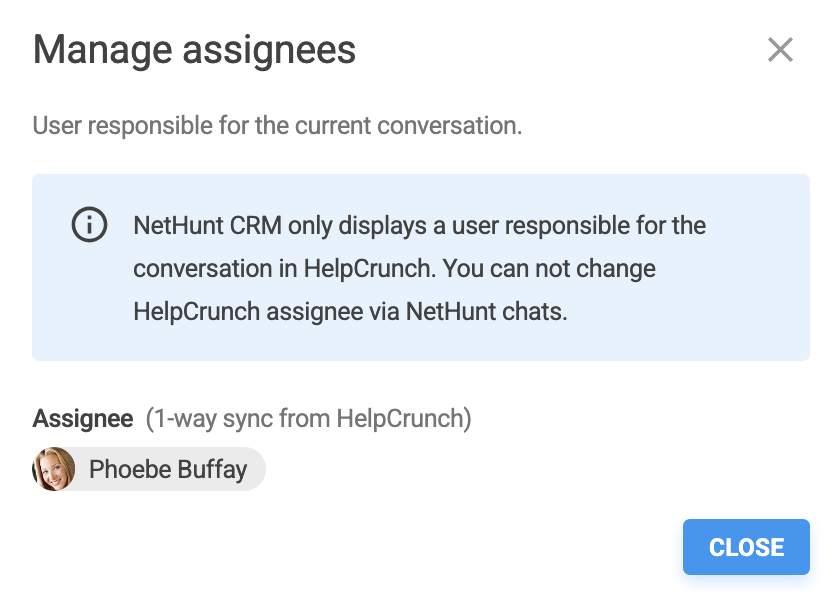
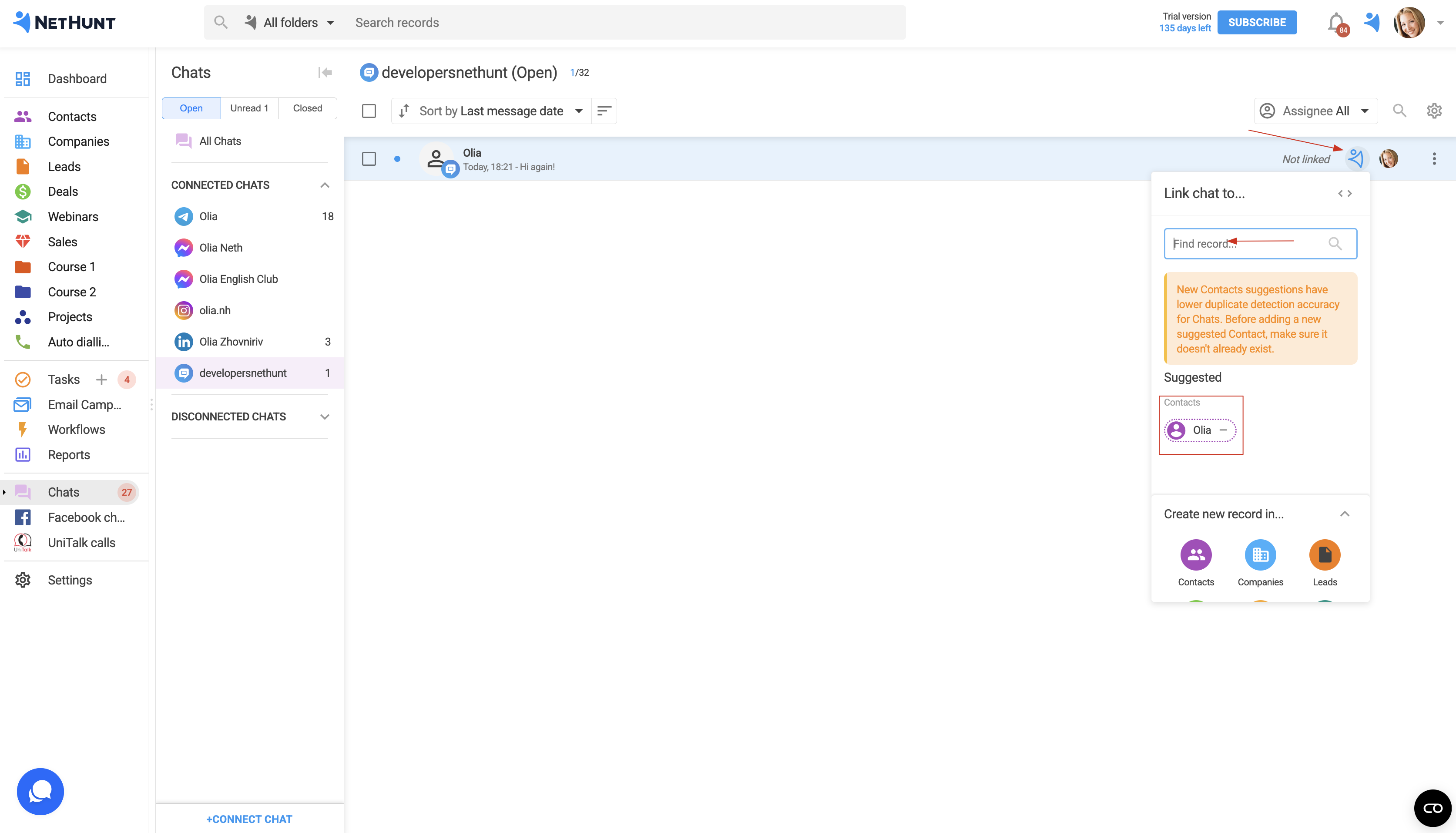
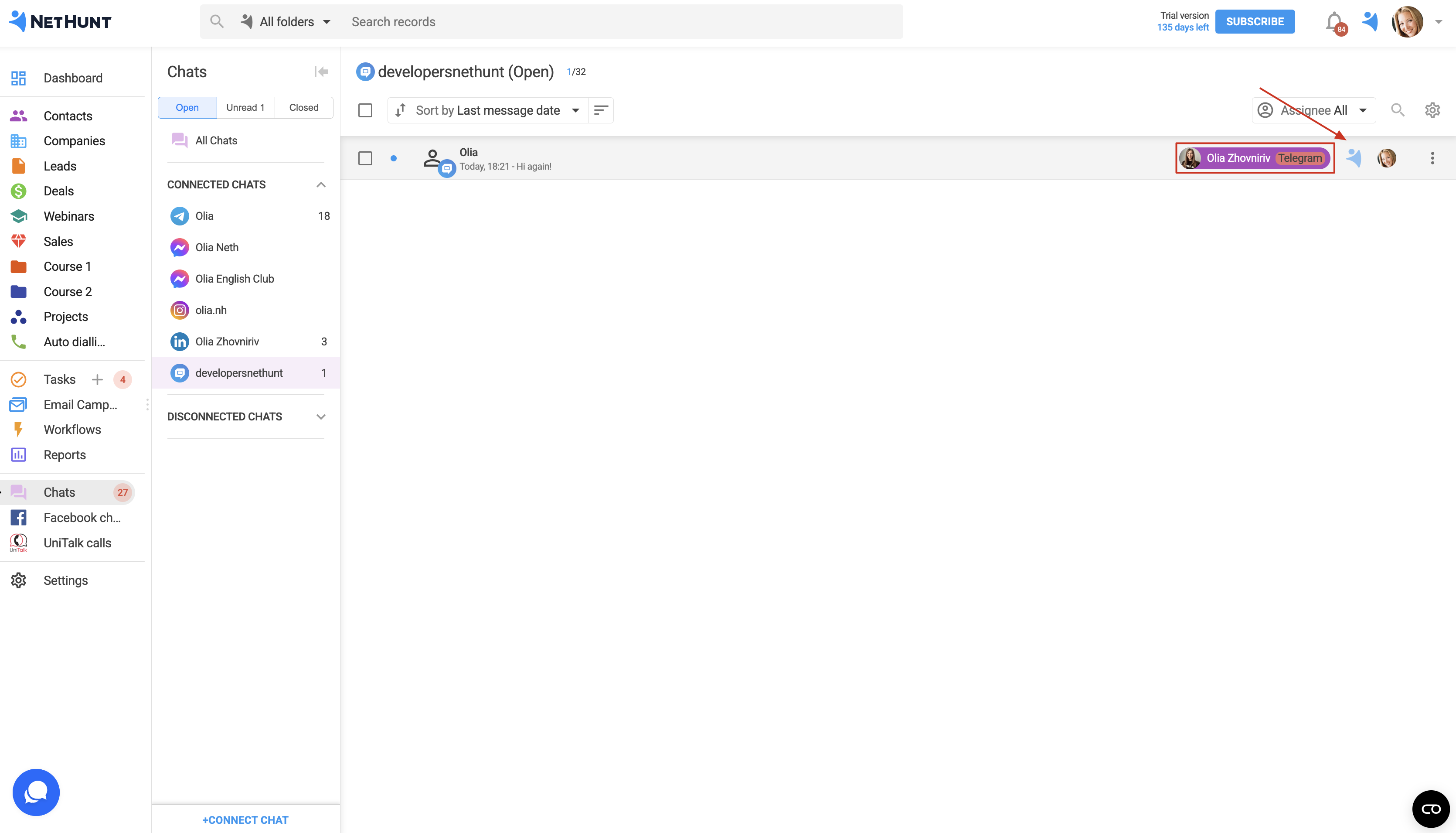
You can link a conversation to an existing record in NetHunt CRM or create a new record. You can also select multiple conversations using the checkboxes and update them all at once.
You can reply to customers directly from the conversation window. Messages are sent under your name as a HelpCrunch agent: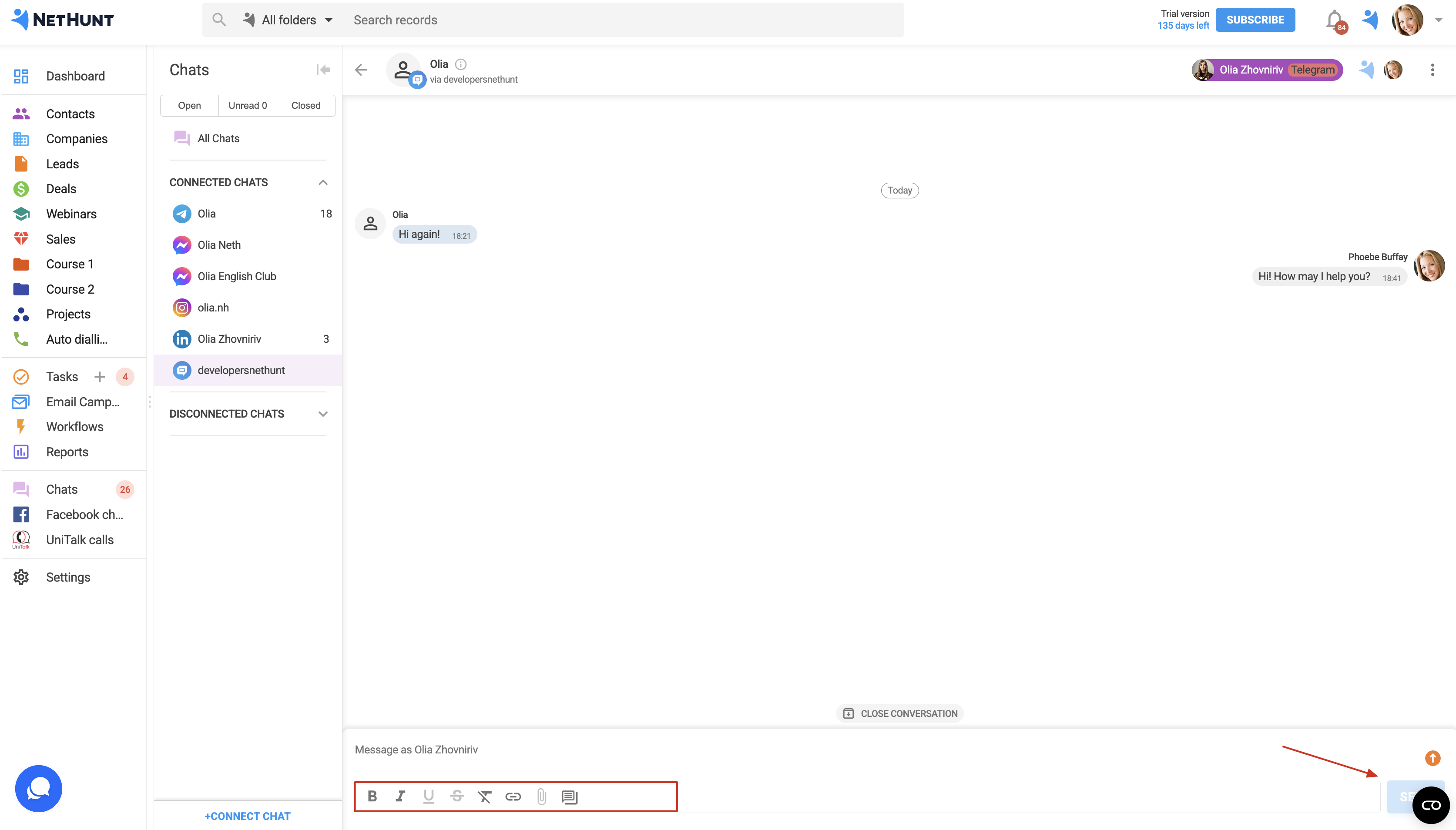
The conversation window provides the following features:
-
Formatting: Bold text, italics, and links.
-
Files: The HelpCrunch API currently does not support sending files.
-
Chat Templates: Predefined replies to frequently asked questions.
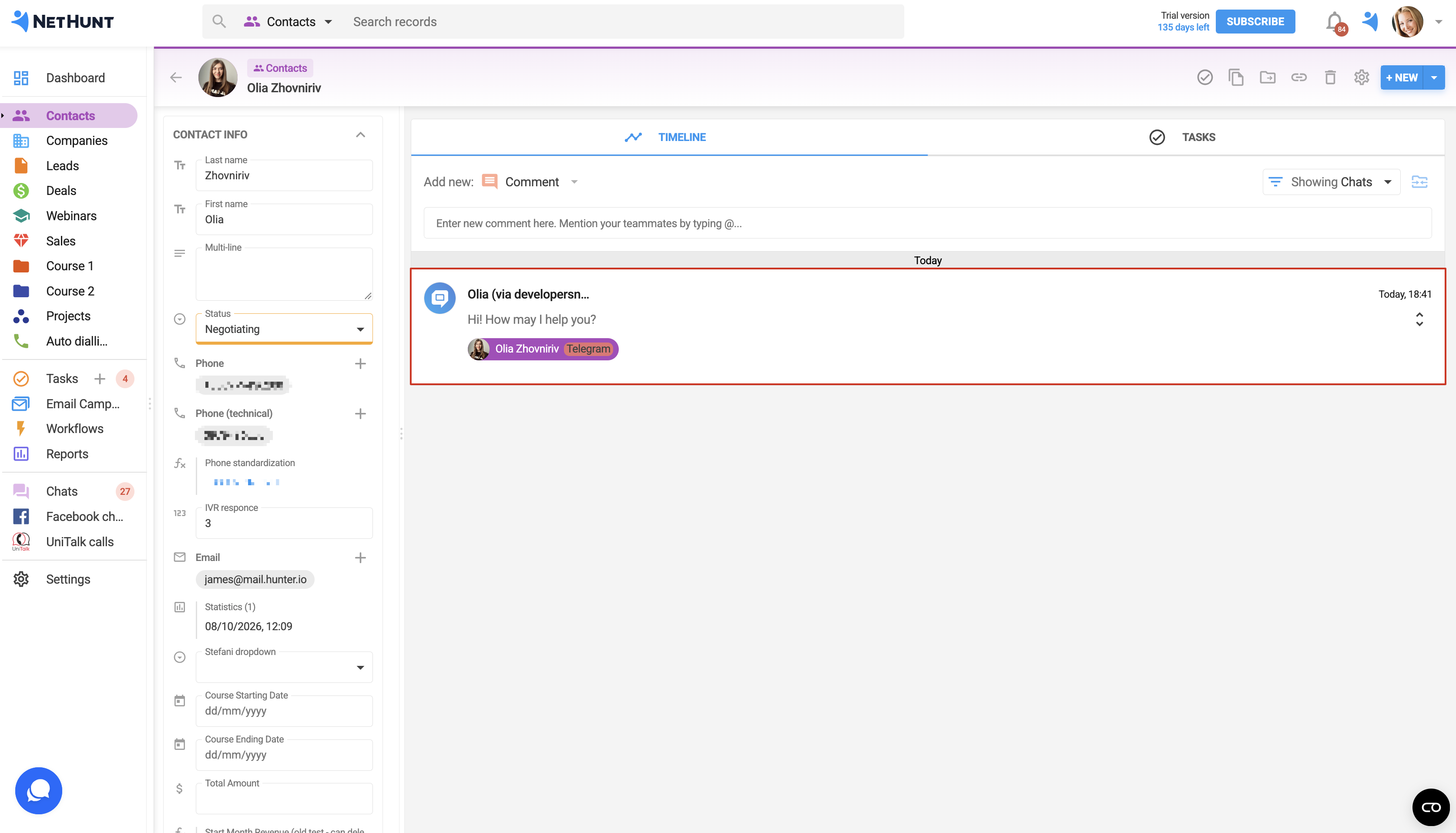
Linked conversations will also appear in the activity history of the associated records.
How to Disconnect HelpCrunch
Open the HelpCrunch chat settings and click Disconnect: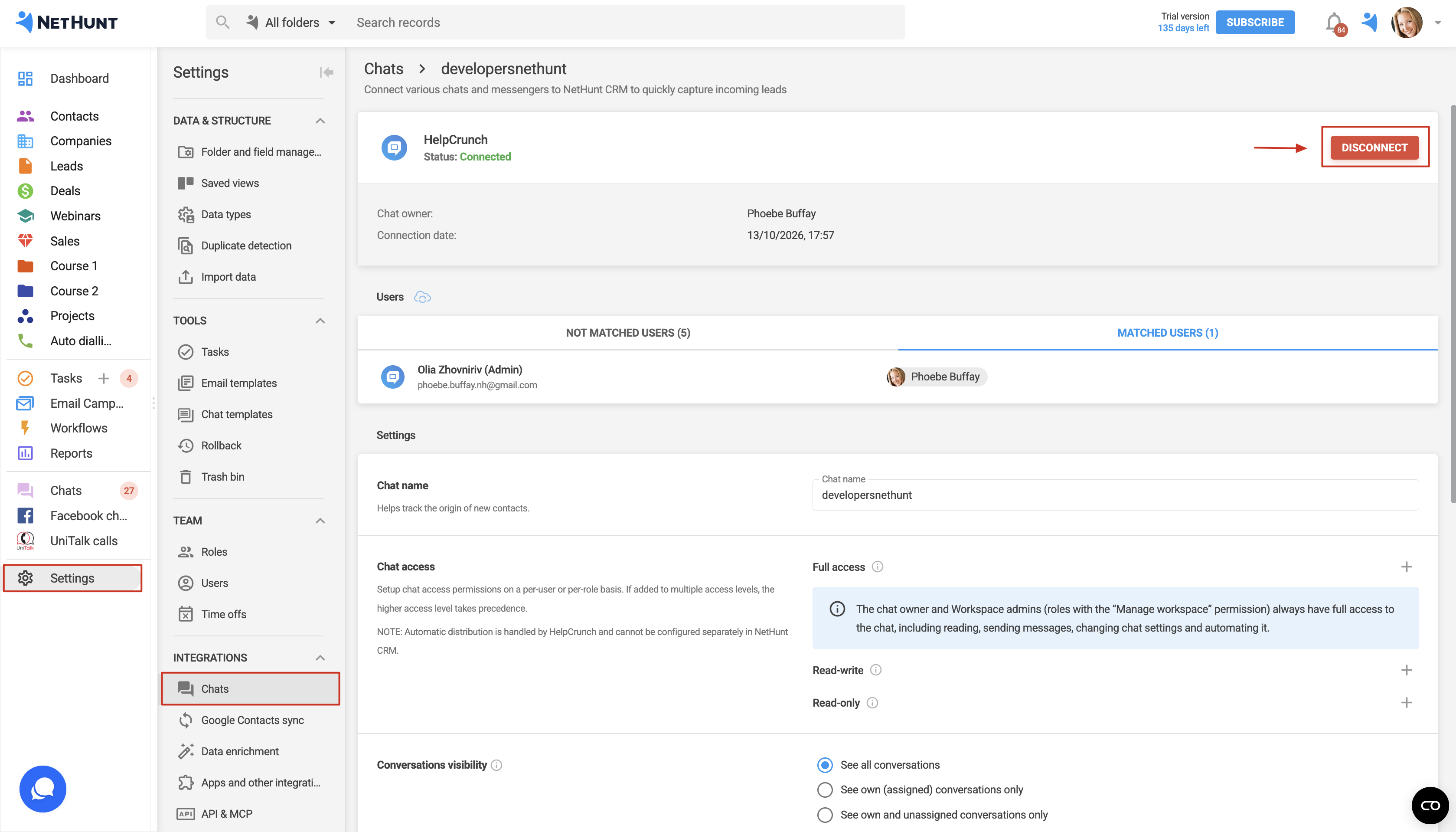
That's it! You can now manage customer inquiries from HelpCrunch directly in NetHunt CRM.
For more information, see our articles on Notifications and Automating Processes in the Chats Section.
Haven’t found the answers you’re looking for? Ask our User's Community.
