In order to start connecting your NetHunt account with Viber please go to Settings - Chats and hit Connect chat:
 Pick a relevant chat from the list, in this case we are gonna go with Viber:

With the next step you will need to enter your chat-bot API token:
 If you have not created a Viber bot yet, here is a step-by-step guide on how to do so, along with a link to Viber’s official pricing for Viber Bots:
How to Create a Viber Bot
As of February 5, 2024, Viber no longer allows users to create bots independently. You can submit an application in one of two ways:
- Through an official Viber partner. The partner will assist you with the application, agreement, and setup. List of partners
- Directly through Viber. Submit an application to create a chatbot through Viber for Business.
-
Follow this link in order to start creating a bot and authorize under your Viber account.
-
Once you have logged in, you can start creating a bot:

3. After filling out all the necessary details the bot is successfully created:

4. At the very bottom of this page you will find an API token needed for establishing an integration:
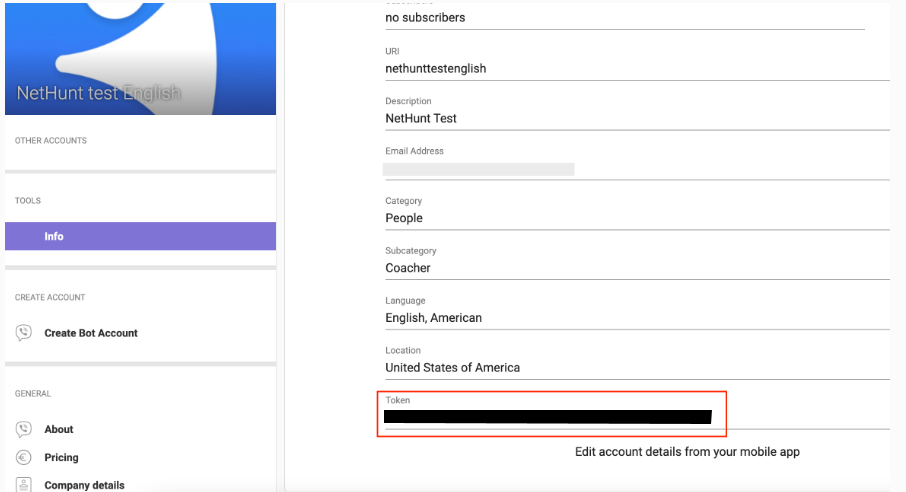
5. Copy and paste it in the Viber chat integration settings in NetHunt:
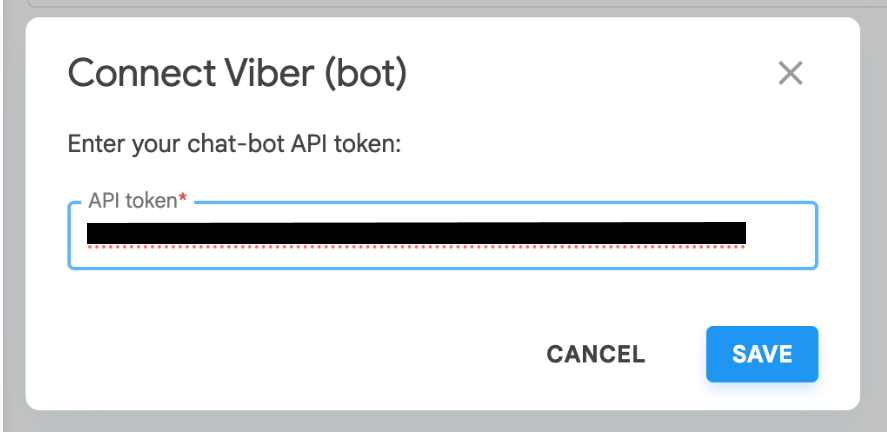
6. All set, you have successfully connected NetHunt with your Viber bot!

Please note: while naming your Viber bot in NetHunt, it's better to stick to 28 symbols at most, as if it's gonna be more, the bot name is gonna be cut short on the recipient side:

Integration with Viber bots allows you to keep your correspondence from Viber bots directly in the CRM, chat with your contacts without leaving the system or create new records from new inquiries.
Once you have successfully configured the integration, here is what would be available for you in NetHunt CRM:
-
You will receive the messages to your Viber bot in the Chats section:

2. All new messages will be displayed with "Not replied" status, and next to the "Chats" section you will have a counter displaying how many chats remain not replied:

Accordingly, when you have replied to the message, the chat status will be changed to "Replied". The logo of the manager in charge will also appear on the right:

3. If this contact is not yet in your CRM database, you can add it immediately by clicking on the NetHunt icon:

4. After creating this contact in NetHunt, all further communication will also be linked and displayed on the timeline history in the contact card, from where you can also reply:

5. When your conversation has come to an end, you can Close it or Delete it (if it wasn't relevant, for instance) and it will become inactive:

This is how a closed conversation will look like:

You can click on the ⍗ sign, then all completed dialogs will be hidden, giving you the opportunity to work only with active requests:

If you closed the chat, but then want to continue the conversation, you can re-open it later on:

File Size Limits in NetHunt CRM Chats
You can send files to customers directly from a customer record or the Chats section.
Supported File Formats and Size Limits
The following limits apply to Viber bots, depending on the content type:
-
Photos: JPEG
-
Videos: MP4 (H.264 codec), up to 180 seconds long and no larger than 8 MB
-
Documents: Up to 8 MB
What Should You Do If a File Exceeds the Size Limit?
If you need to send a file that exceeds the allowed size limit, you can:
-
Compress the file: Use online image optimization tools to reduce image size or ZIP archiving tools to compress documents.
-
Use cloud storage: Upload the file to Google Drive or another cloud storage service and send the link directly in the chat.
Haven’t found the answers you’re looking for? Ask our Users Community.
