After you’ve finished setting up a folder, you can start creating records in it. There are two ways to create records.
Create records from inbox
As soon as you receive an email, you can immediately turn it into a record not even opening the email first. Click on the NetHunt icon in the email subject line to open a Record creation menu. Once you click on the icon, we will suggest you create a Contact or a Company record (or both).

Here you can search for the existing records (you can use the advanced search options) to add a new email to them. This way you can add new emails to the existing records on the same topic to avoid data duplication.
You can also click on the "Suggested" option and NetHunt will automatically create a record in your Contacts folder taking the first and last name of the recipient and his email address right into respective fields.

Alternatively, NetHunt CRM gives you suggestions as to the title of the record based on its content.

In case there’s no such record found, you can create a new one inside any folder you have access to.

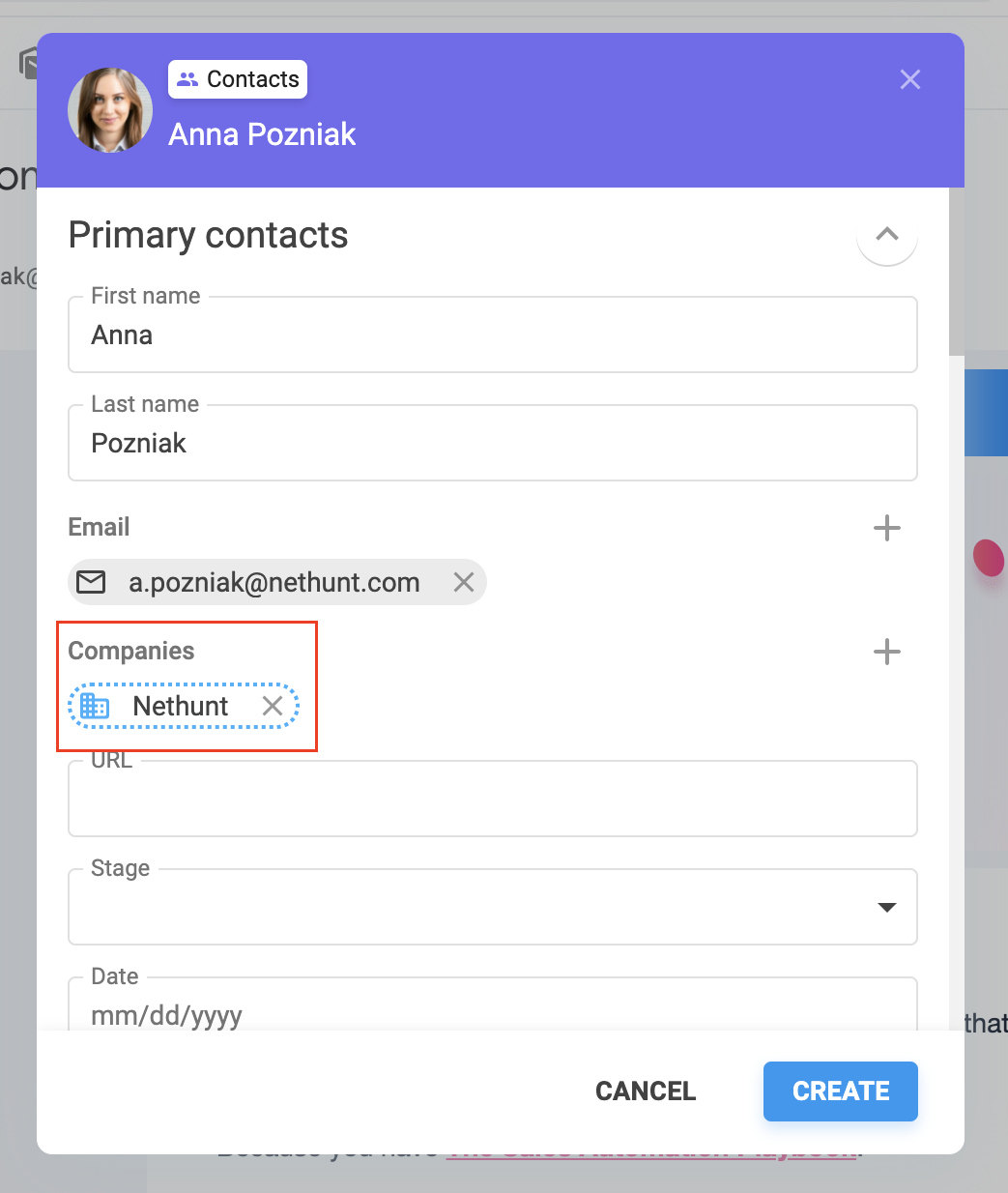
The system will give you an option to add some extra data to the newly created record on the go. Also, NetHunt will offer you to create a Company record along with the Contact one and link them. If you don't want a Company record to be created - simply click on the X and it will be removed.
To unlink (delete) an email from a record, click on the snippet and choose “Unlink record”.

The same options are available from an open email. All you have to do is click on the NetHunt button in the toolbar.

The record data will become available from inside that email in the right sidebar after you’ve created a record based on an email or added an email to the existing record. Here you’re able to check and edit the corresponding record data inside the fields.

Create records from a record list or a view
To create a new record, access either a folder...

or a previously created view and hit “+New record”.

Then, start filling out the fields you already have with the relevant information.

Let's say you have a deal folder where there is a field Client. This field's type is Record list allowing you to establish links between folders: Deals and Clients.
So you link a deal to a client. If you only created a deal but the client record does not exist yet - you can simply create the client's record from the deal.
-
Go to the Deal record
-
Click on the client field and click on the Create new option>Choose the folder you will place the newly created record.

- Create a record by filling out data.
- These two records will be linked at once and when you click on the Client record - scroll down and you will see the deal record as related:

How to link records
When you have a few folders in your workspace, you might need to link records from all of them together.
Let's say you have two folders: Deals and Companies. Each customer has at least one deal (opportunity/project) linked to them.
-
You need to establish a link between these two folders.
-
Go to the Deals (or another folder you have) folder settings.
-
Add the linking field to folder Companies:

4. Save the settings and go to any deal record.
5. Click on the Company field you just added and you will need to start typing the customer name you already have in your folder and it will give you the option to link it to the deal. Or you can create a new customer record.

Haven’t found the answers you’re looking for? Ask our Users Community.
