Mailboxes allow you to connect additional email addresses to NetHunt CRM and send Email campaigns and Workflow emails. You can connect Gmail and Outlook accounts, as well as any other email account via IMAP.
This allows you to send emails on behalf of different addresses—such as the sales or support departments—and view customer replies directly in the CRM.
Why connect email accounts?
- Sending on behalf of different addresses: Connected accounts are available in the “Send As” menu in email campaigns and automation emails.
- Tracking replies and bounces: NetHunt CRM automatically tracks replies and bounces for emails sent from connected mailboxes.
- Linking replies to records: Customer replies appear in the activity history of the corresponding records.
- Available to all users: Any user can connect an email account, regardless of whether they log in to NetHunt CRM via a Google account or via email and password.
How to connect an email account
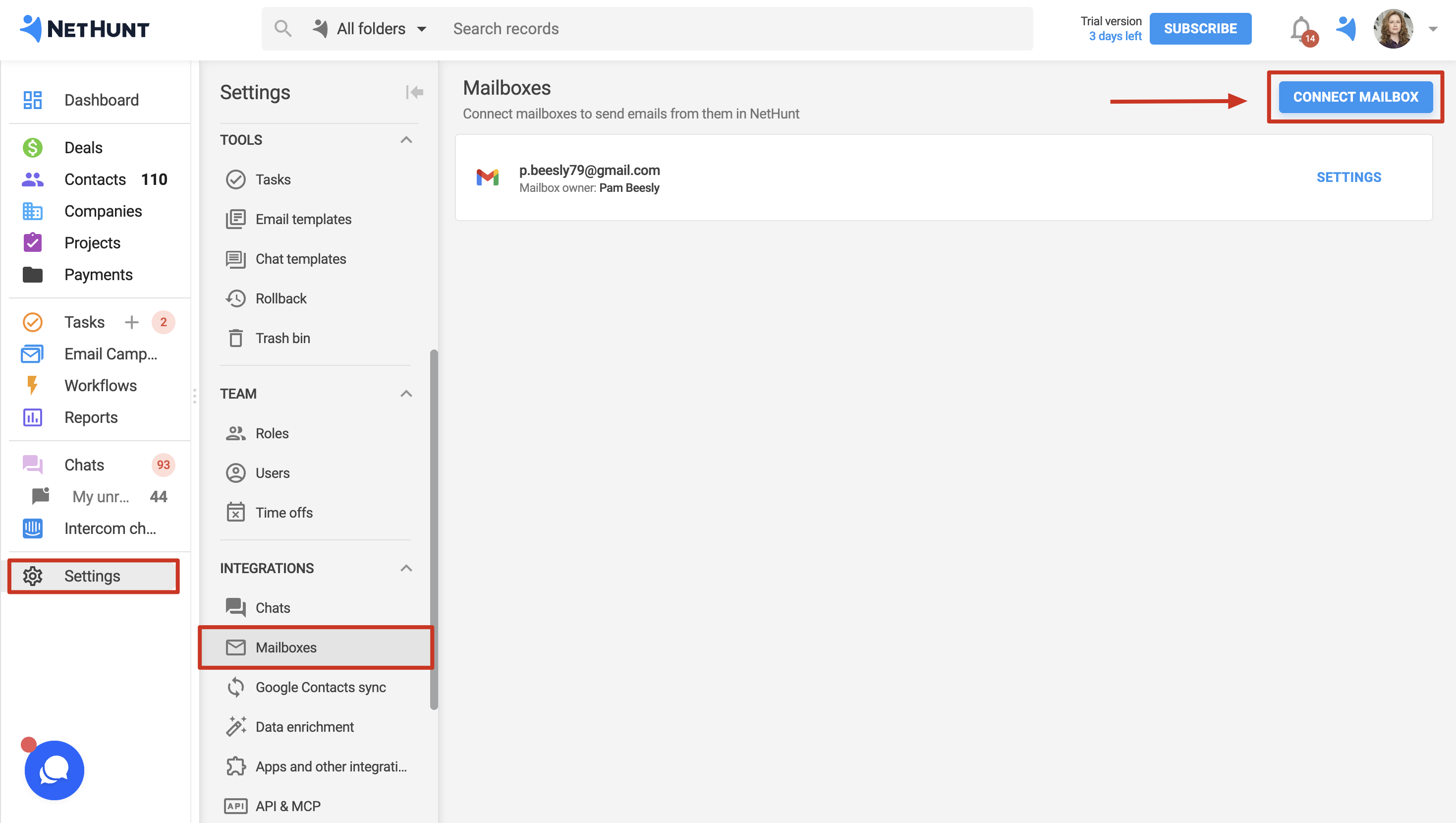
- Go to Settings → Mailboxes.
- Click Connect Mailbox:
- Select a connection method: Gmail, Outlook, or IMAP:
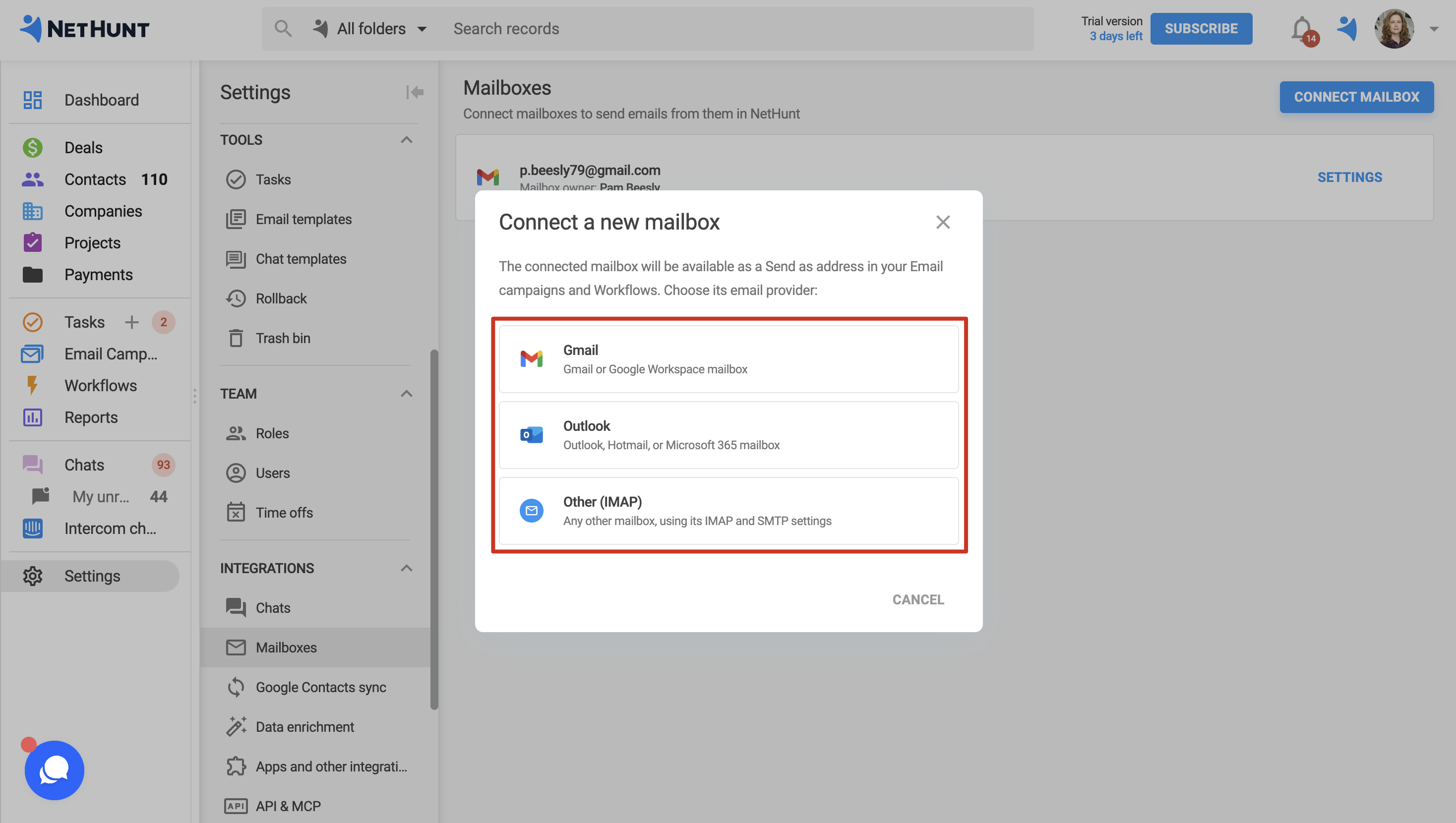
- For Gmail and Outlook, sign in to the appropriate account and grant permissions to NetHunt CRM.
💡 To ensure that replies to your emails are linked to the corresponding records in the CRM, grant all permissions during setup.
Connecting via IMAP:
For mailboxes on other email services, you’ll need a separate app password. Let’s look at an example using Yahoo mail.
- In your email service settings, open the section for managing IMAP access: [Account Settings > Security]
- Create a new password for the app and enter its name, such as NetHunt:
- Copy the generated key:
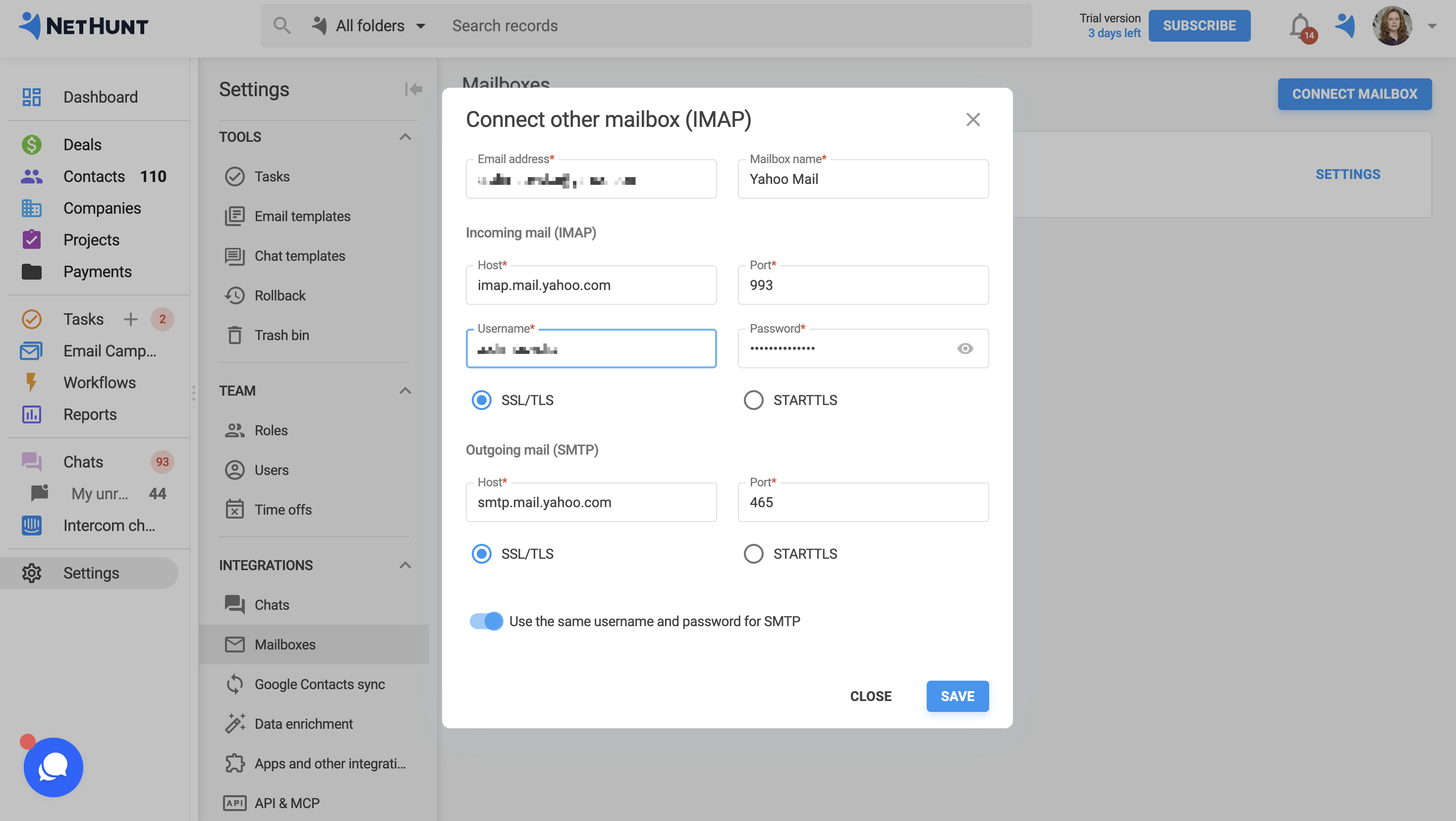
- Go back to NetHunt CRM and enter your IMAP settings. For yahoo.com, use the following settings (see the yahoo instructions for more details):
- Incoming mail server (IMAP): imap.mail.yahoo.com.
- Port: 993.
- Connection: SSL/TLS
- Secure Password Authentication (SPA) is disabled.
If you want to use Yahoo mail’s SMTP servers, specify:
- Outgoing mail server (SMTP) address: smtp.mail.yahoo.com;
- port 465 (if connections on port 465 are blocked, you can also use port 587);
- connection type — SSL or STARTTLS secured.
Paste the copied key into the Password field:
Once connected, the mailbox will appear in the list.
💡If you log in to NetHunt CRM using a Google account, this mailbox will always appear first in the list.
Mailbox Settings
On the mailbox settings page, you can change:
- Mailbox name: the sender’s name that recipients will see.
- Reply-to address: the address where replies will be sent.
⚠️ Important: We recommend leaving the Reply-to field blank. Then, replies will be sent to the mailbox from which the email was sent. NetHunt CRM tracks replies and bounces only if they arrive in a mailbox to which the CRM has access: your primary Gmail mailbox, which you use to log in to the CRM, or one of the mailboxes connected in the Mailboxes section.
How to Send Emails from a Connected Mailbox
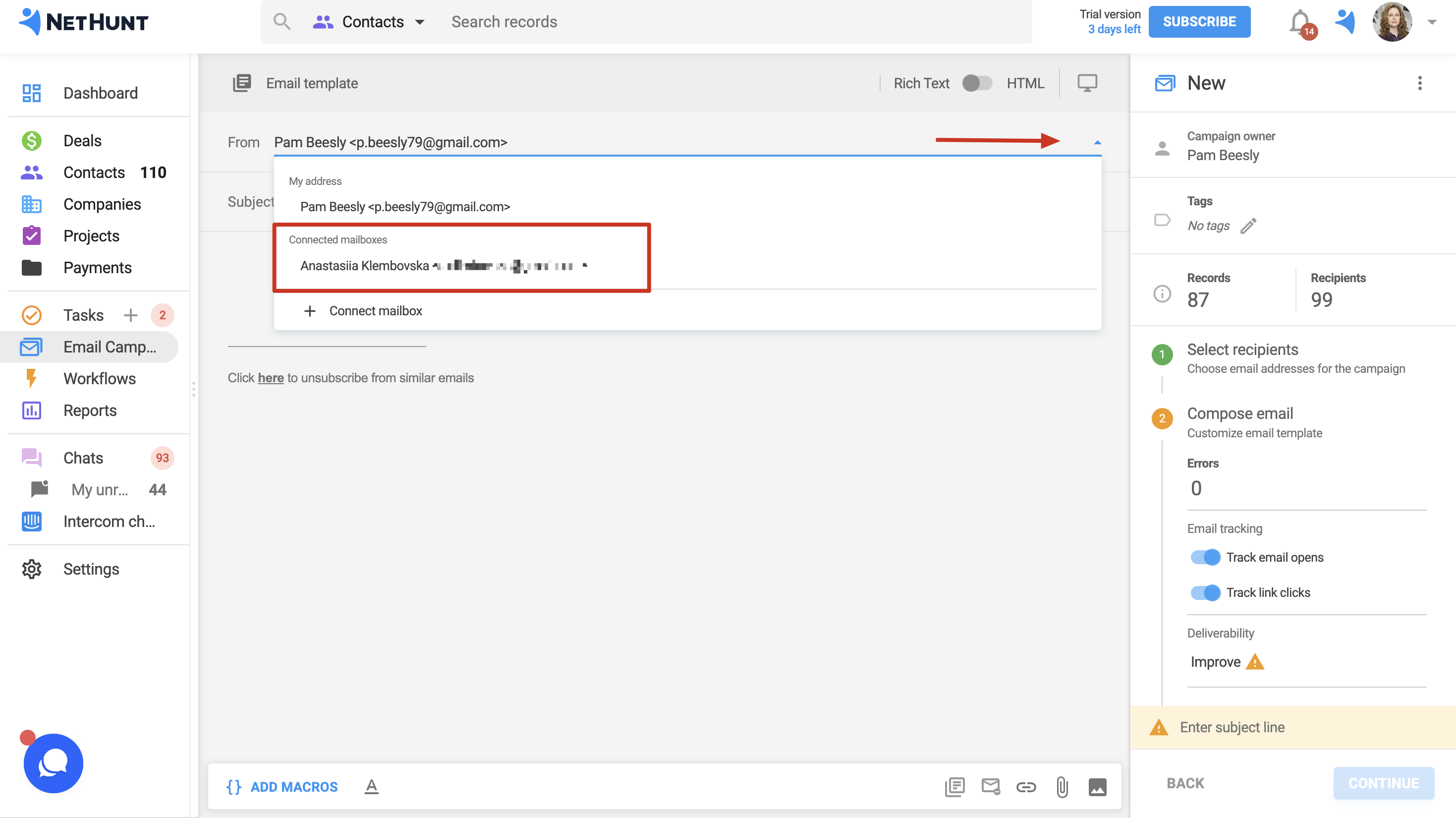
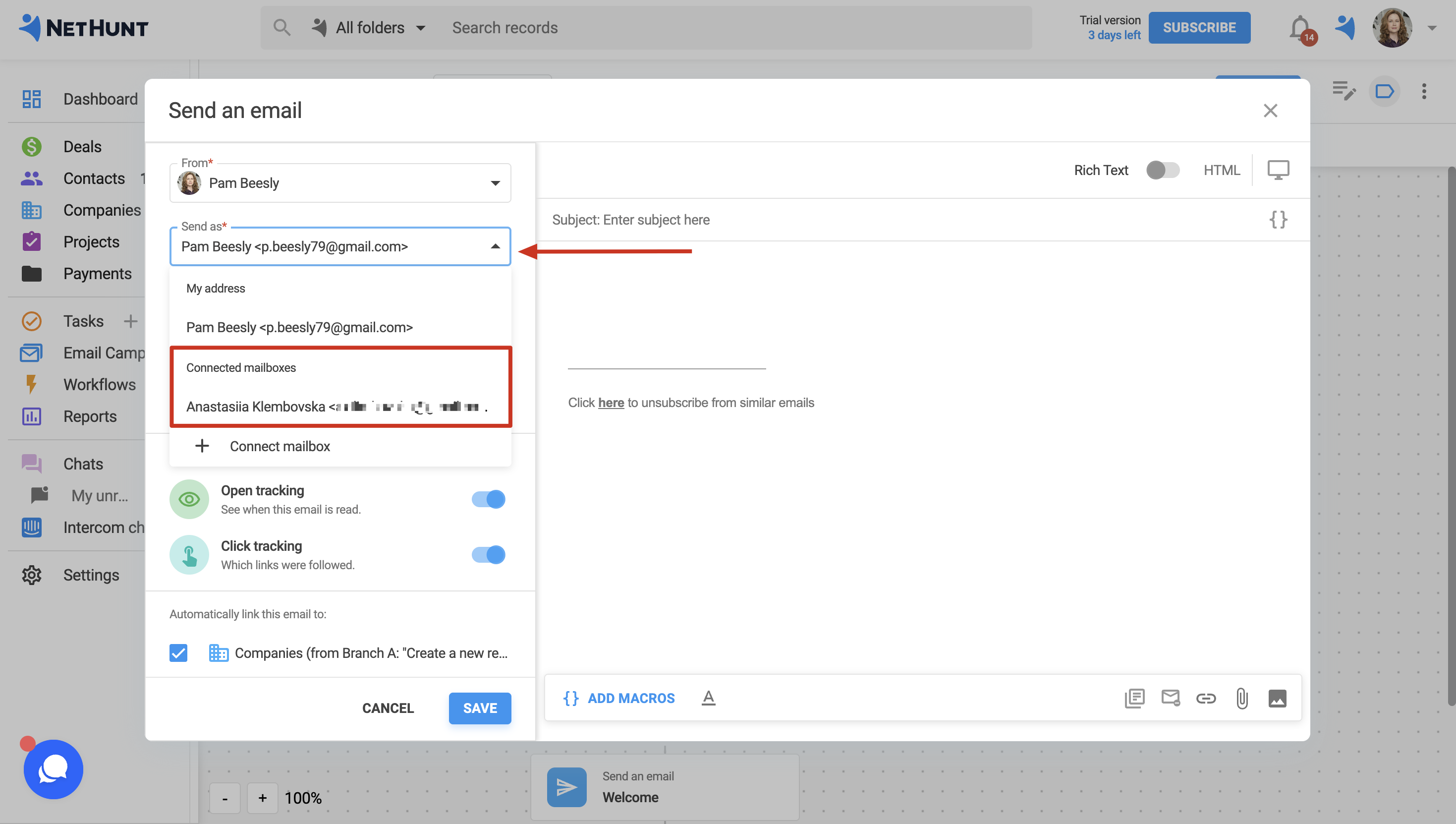
Connected mailboxes are available in the “Send As” menu. From there, you can also connect a new mailbox without leaving the campaign or automation.
In an email campaign:
- Open the campaign and select the desired mailbox in the “Send As” field:
In the workflow:
- Open the “Send Email” action in the automation workflow and select the desired email account in the “Send as” field:
All done! Now you can send email campaigns and automated emails from any connected email account and view customer responses right in the CRM.
Haven’t found the answers you’re looking for? Ask our Users Community.
